Overview
Once an activity has been scheduled and confirmed with the candidate, you can send a PDF booking form to the candidate, the client, or both by email.
Send booking forms
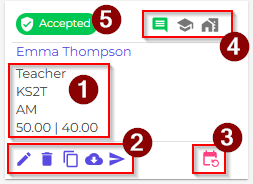
To send booking forms, find the activity in the weekly planner and click the send button (the fifth button in section 2 below):
You will see a confirmation screen showing the email addresses that will receive the booking forms:
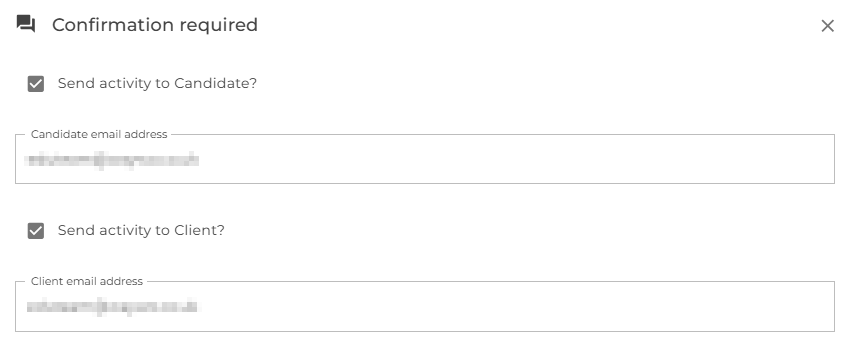
The recipient email addresses are taken from the candidate and client records.
Once the booking forms have been sent, the indicators shown in section 4 above turn green to show that the emails were successfully sent.
You can download the generated PDFs at any time using the fourth button in section 2 above.
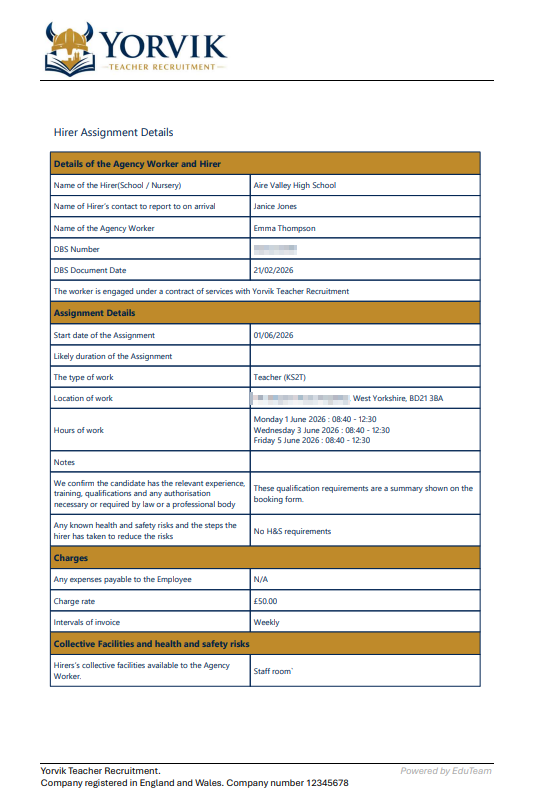
Candidate booking form
A typical candidate booking form is shown below:
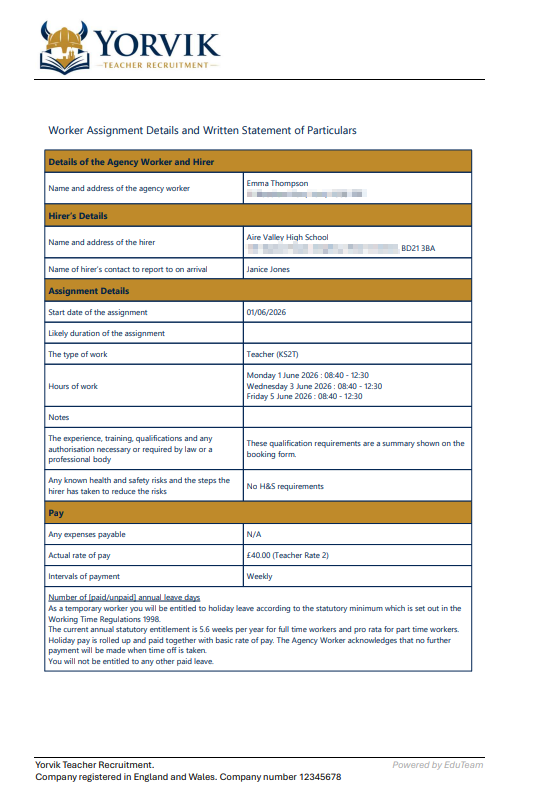
Client booking form
A typical client booking form is shown below:
To customise the content and layout of booking forms, see:
Next
Learn how to onboard and manage candidates
Learn how to onboard and manage clients
Learn how to manage and ensure candidate compliance
Learn how to schedule activities
Learn how to generate timesheets
Learn how to manage contacts
Understand how to analyse and report on your consultant and agency performance