Overview
This guide explains how to view, create and manage contact records within EduTeam.
Work with existing contacts
Navigate to Maintenance > Contacts
The contact list page shows you a list of all contacts in the system.
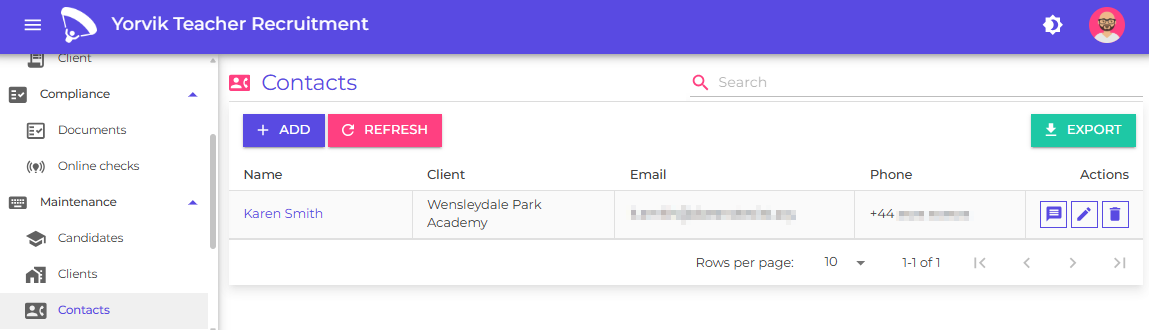
You can use these filters to quickly locate specific contacts:
- Search - by keyword
- Active - show or hide inactive contacts
Each contact record includes a quick action to:
- View the contact’s location in Google Maps
Add a new contact
Click the Add button
You will see the add/edit contact page
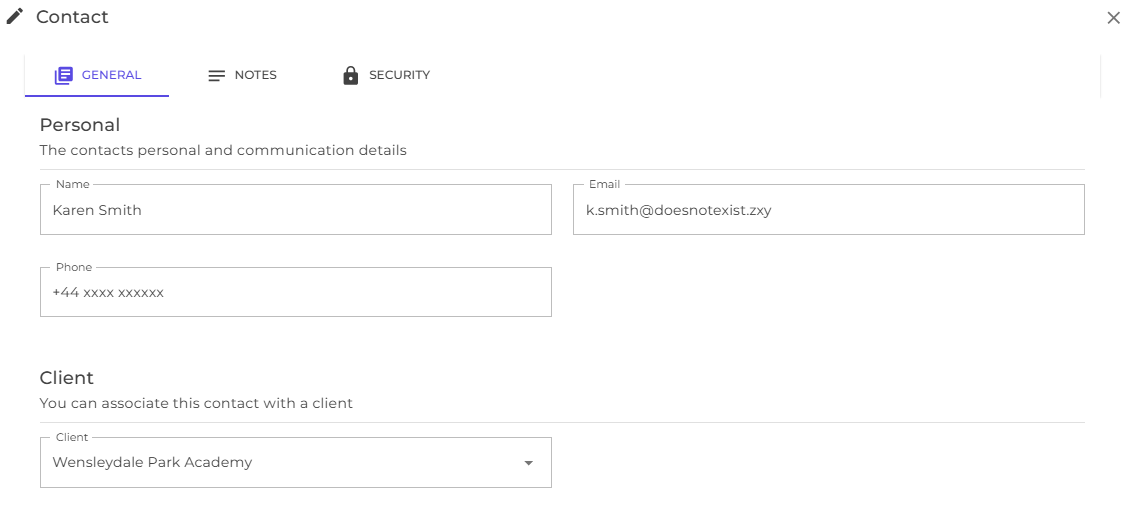
Each contact has the following fields on the general details tab :
| Field | Description |
|---|---|
| Name | The name of the contact |
| Email address for the contact | |
| Phone | Contact number for the contact |
| Client | You can optionally associate the contact with a client. This is required if you associate the contact with a user record on the security tab. |
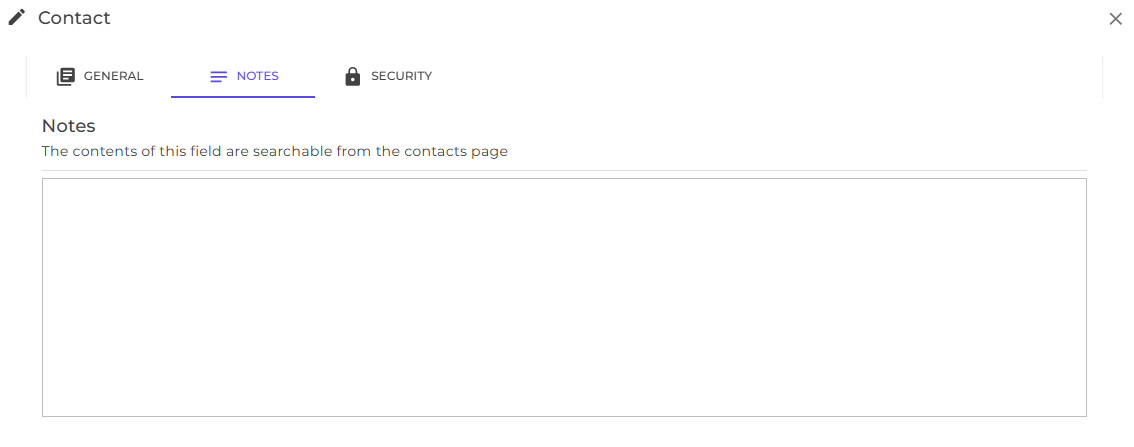
Switch to the notes tab
You will see a notes tab for this contact
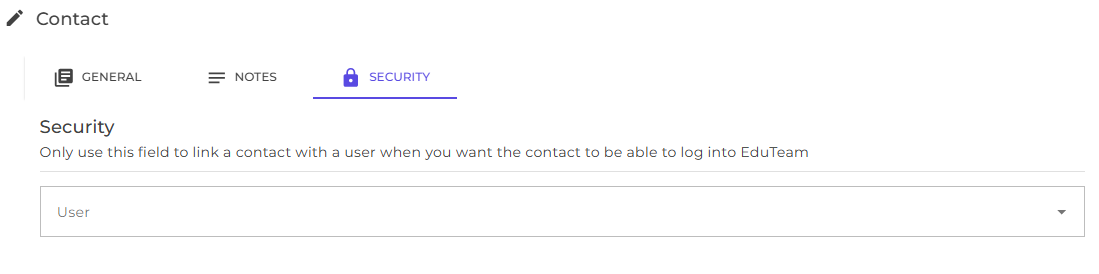
Switch to the security tab
The security tab is where you can optionally associate a contact with a user profile. This allows the contact to log into EduTeam.
Next
Learn how to onboard and manage candidates
Learn how to onboard and manage clients
Learn how to manage and ensure candidate compliance
Learn how to schedule activities
Learn how to generate and send booking forms
Learn how to generate timesheets
Understand how to analyse and report on your consultant and agency performance