Overview
This guide explains how to view, create and manage activities using the weekly planner.
Work with the weekly planner
Open the weekly planner
This will show you a planner of all of the activities for the current week:
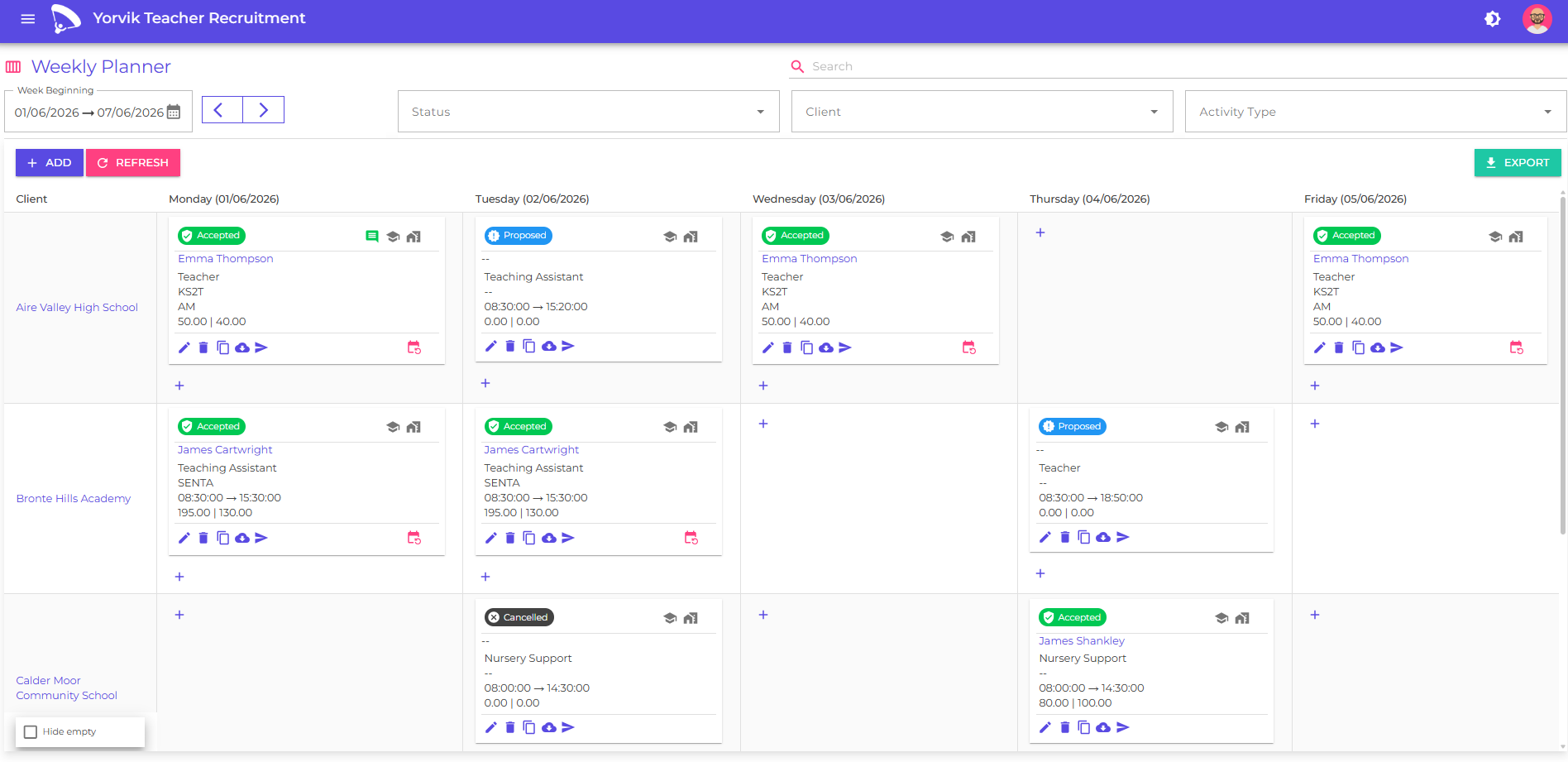
You can use these filters to quickly locate specific activities:
- Search - by keyword, candidate name or client
- Status – show or hide proposed, accepted or cancelled activities
- Client – filter to a specific client
- Activity – filter by activity type
Each activity in the weekly planner is represented by the following card:
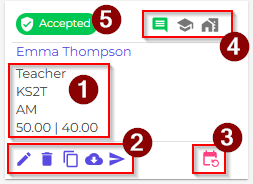
- 1 - Activity type, Activity subtype, Shift or start and end hours, Charge and pay amounts
- 2 - Edit, delete, copy, download booking form, send booking form by email to candidate and/or client
- 3 - Indicates whether this is a recurring activity
- 4 - Indicates whether notes exist for the activity, and whether the booking form has been sent to the candidate and/or client
- 5 - Indicates the status. You can click on this indicator to cycle through the different status for this activity.
Add a new activity
Click the Add button
You will see the add/edit activity page
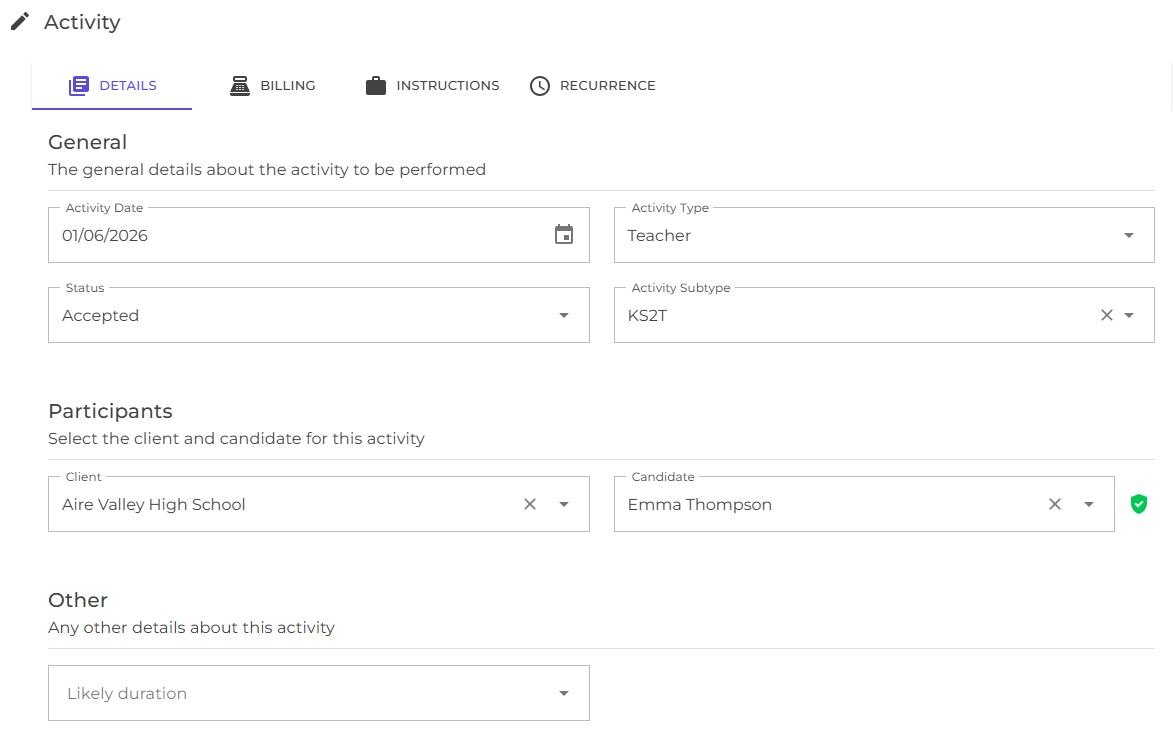
Each activity has the following fields on the general details tab :
| Field | Description |
|---|---|
| Activity Date | The date of this activity |
| Status | The status. Only accepted activities are considered for inclusion in timesheets |
| Reason code | This is only shown when you are cancelling an activity and can be used for reporting and analysis |
| Activity Type | The type of activity to be performed |
| Activity Subtype | The activity subtype |
| Client | The client engaging the candidate |
| Candidate | The candidate that will perform the activity. Not the compliance indicator. |
| Likely duration | The likely duration of the engagement to show on the candidate booking form |
Switch to the billing tab
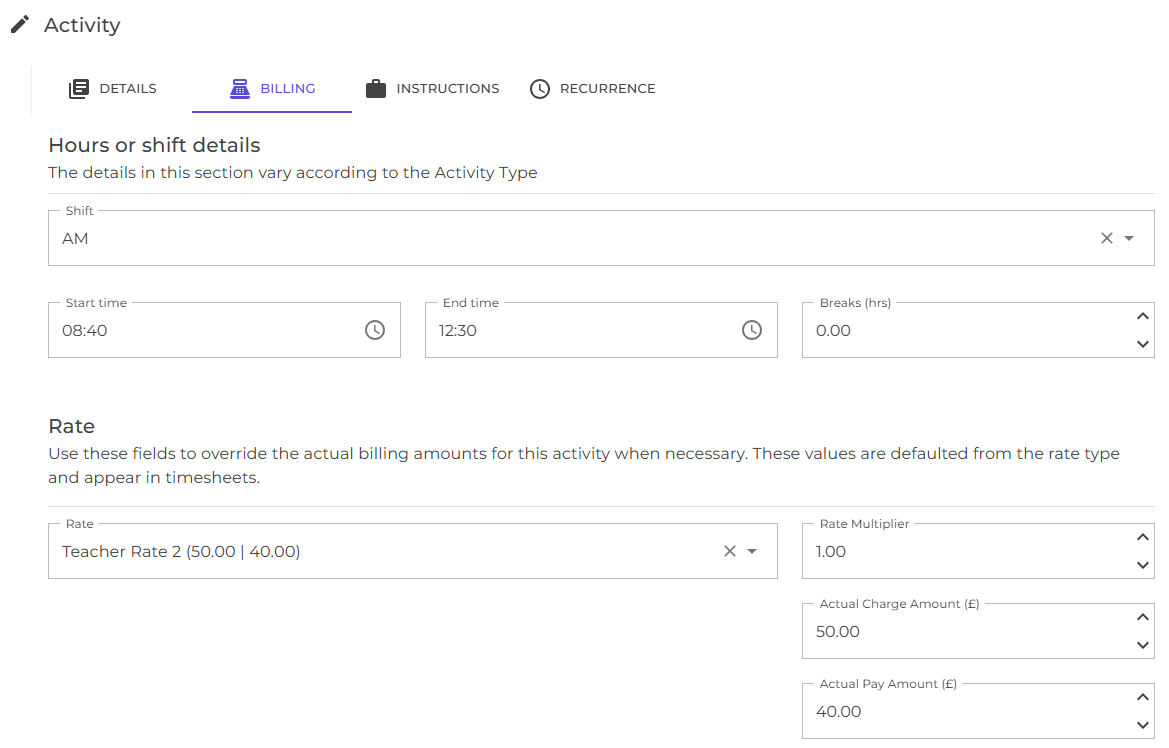
There are additional fields on this tab to record billing details for the activity. These may vary depending on how the select Activity Type has been configured:
| Field | Description |
|---|---|
| Shift | The shift |
| Start time | The time that the activity starts |
| End time | The time that the activity starts |
| Breaks | The duration of breaks |
| Rate | The rate |
| Rate multiplier | The multiplier to use for calculating the actual charge and pay amounts |
| Actual charge amount | The actual charge amount to show on the client timesheet |
| Actual pay amount | The actual pay amount to show on the candidate timesheet |
Switch to the instructions tab
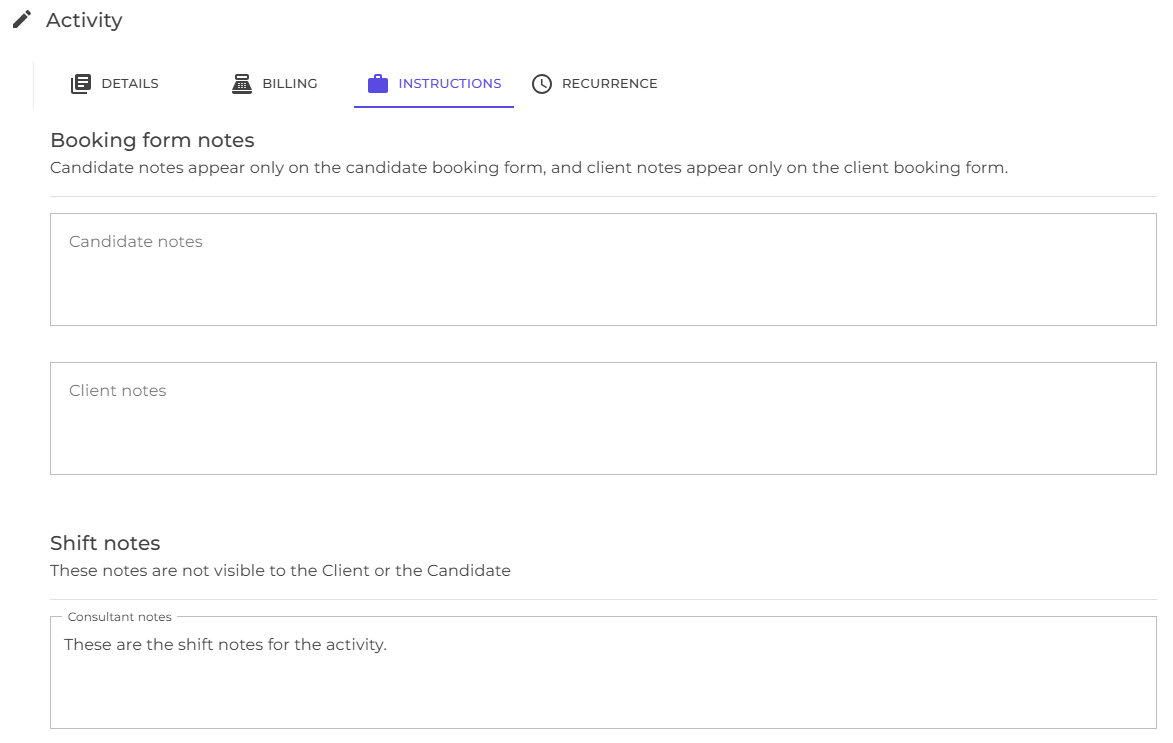
There are additional fields on this tab to record instructions for the activity:
| Field | Description |
|---|---|
| Candidate notes | Notes for the candidate’s booking form |
| Client notes | Notes for the client’s booking form |
| Consultant notes | Internal notes to show in the planner |
Switch to the recurrence tab
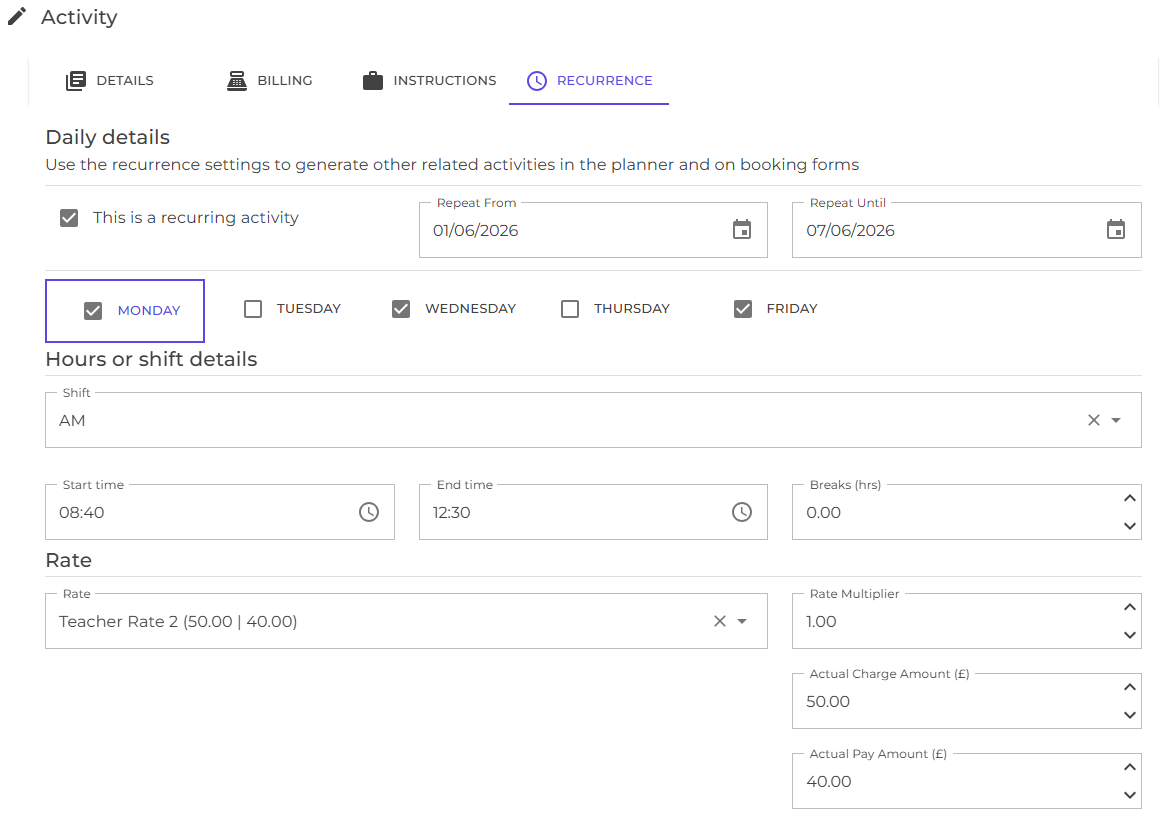
There are additional fields on this tab to define a recurrence schedule for the activity:
| Field | Description |
|---|---|
| Recurring | Determines whether this activity is recurring |
| Repeat from | The date to start repeating the activity |
| Repeat to | The date to stop repeating the activity |
| Days of week to repeat | The days of the week to repeat the activity |
| Hours, shift and rates | These can be varied according to the day selected |
Work with the activities list page
Open the activities list page
The activities list page is an alternative way of finding and maintaining activities recorded in the system using the same filters.
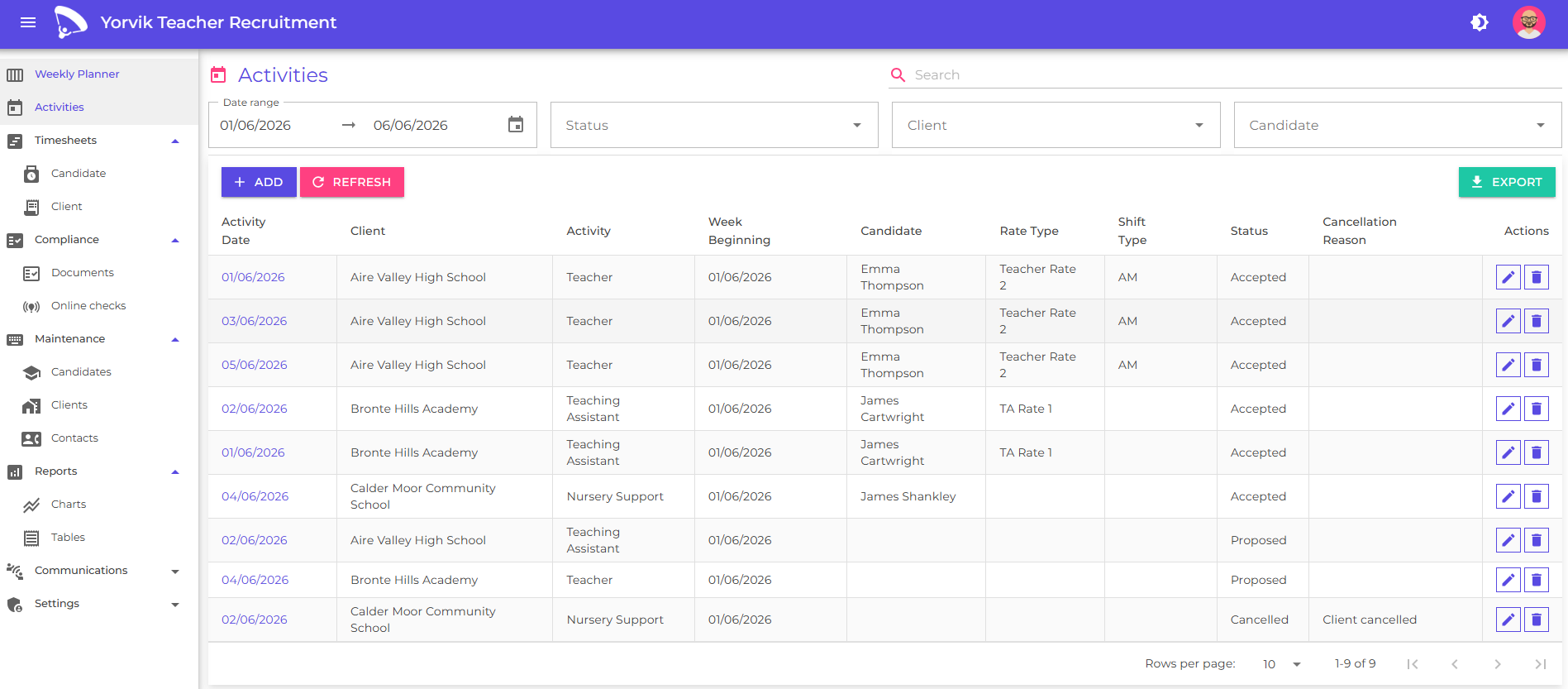
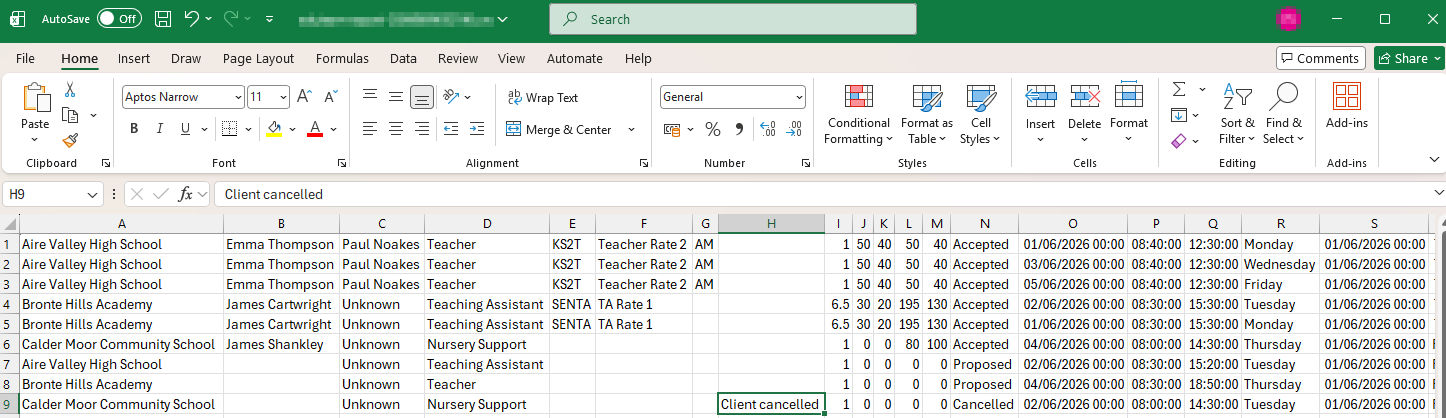
You can filter and then export activites from this page for further processing in a spreadsheet
Next
Learn how to onboard and manage candidates
Learn how to onboard and manage clients
Learn how to manage and ensure candidate compliance
Learn how to generate and send booking forms
Learn how to generate timesheets
Learn how to manage contacts
Understand how to analyse and report on your consultant and agency performance