Overview
Timesheets are generated from the Accepted activities in the weekly planner (proposed and cancelled activities are not included in timesheets). It is essential to ensure that the weekly planner is up to date before creating and sending timesheets to candidates and clients.
Generate candidate timesheet
Navigate to Timesheets > Candidate
The candidate timesheet list page shows you a list of all candidates with accepted activities for the selected week.
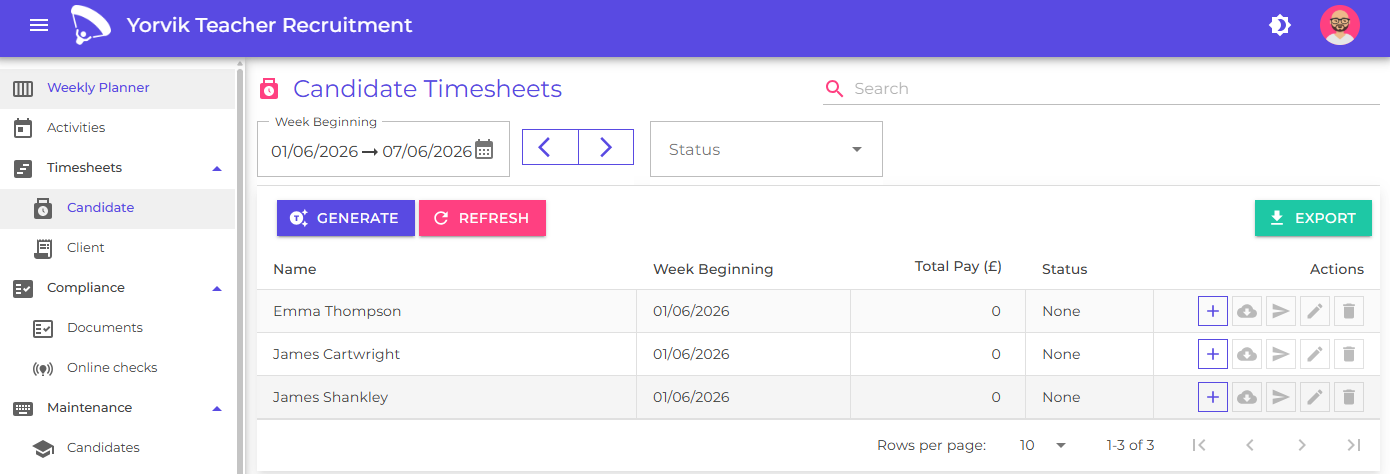
You can use the status filter to find timesheets based on their status:
- None
- Sent - it’s been sent to the candidate. This is set when the timesheet is emailed to the candidate.
- Confirmed - the timesheet has been confirmed by the candidate (this can happen via a secure link in the timesheet email
- Paid - you have paid or settled the timesheet (set manually by you)
Click the Add button for a candidate
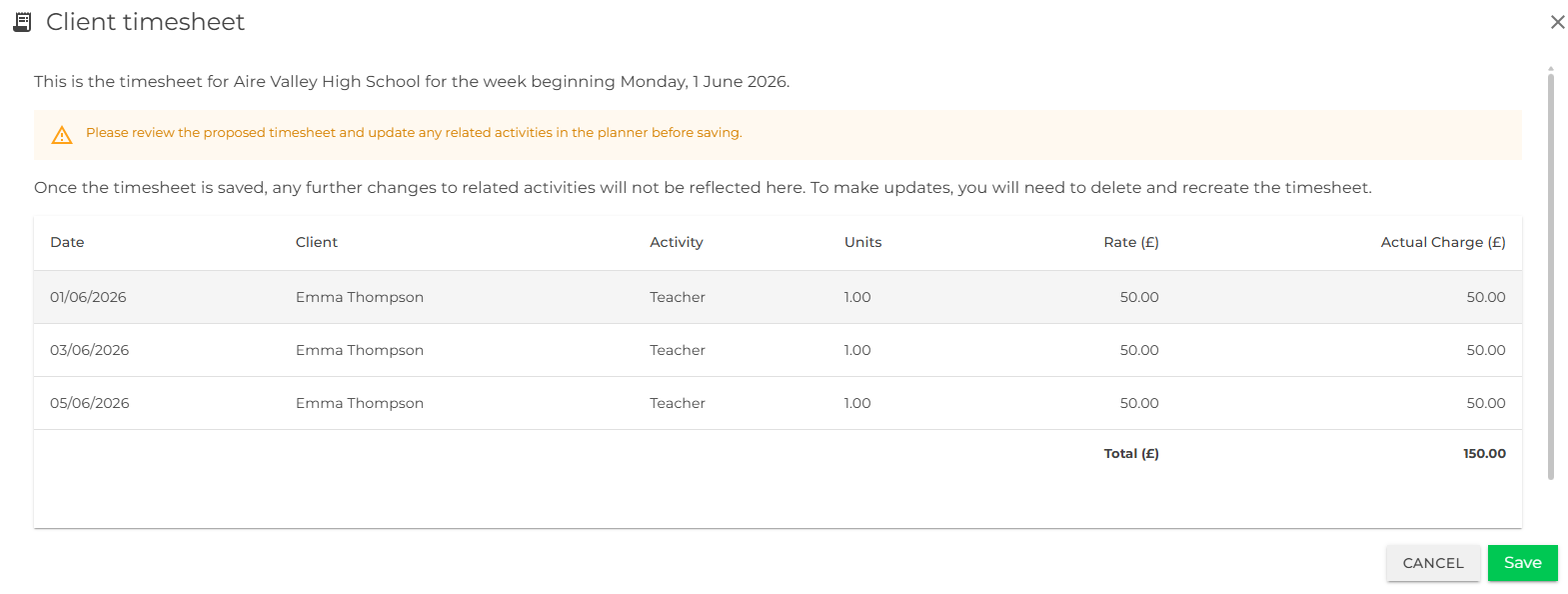
Review the timesheet and click save.
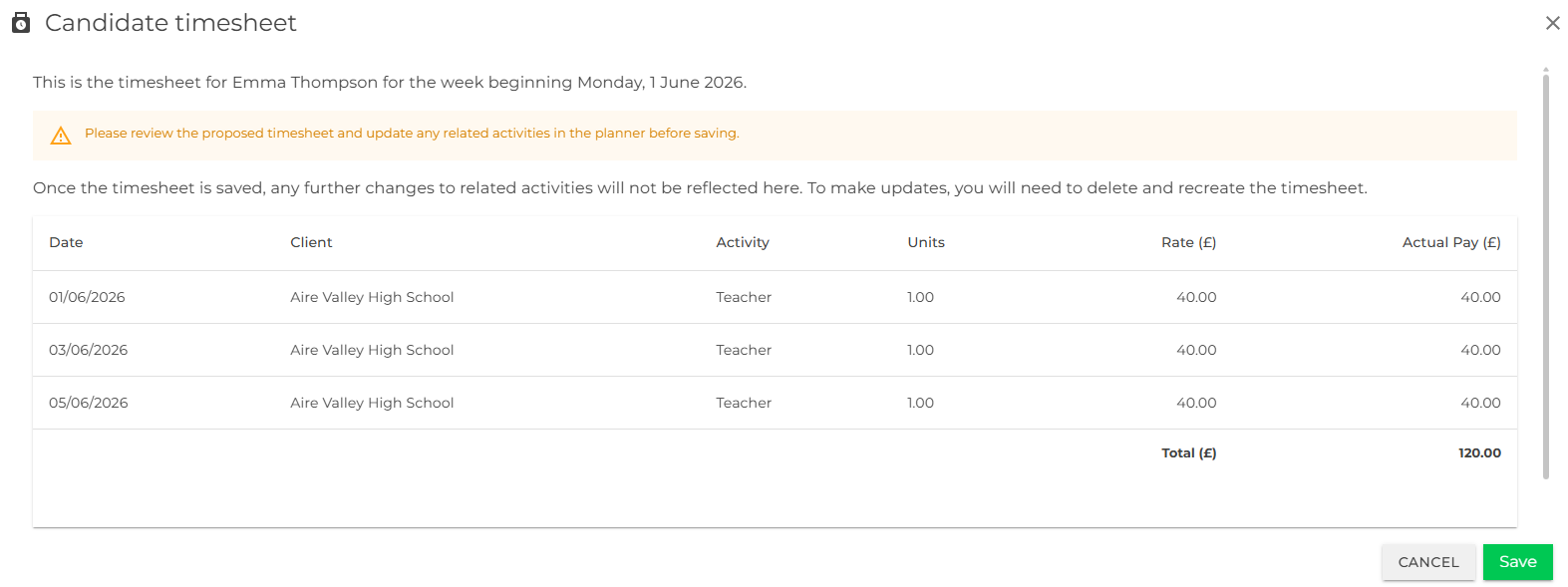
If you need to update the timesheet, click cancel and then adjust or create activities in the planner before recreate the timesheet. If you need to adjust the timesheet once it has been created or sent to the candidate, you need to delete it before making updates in the planner (This generates a new identifier for the timesheet which helps to maintain an audit trail of which timesheet version was confirmed by the candidate.)
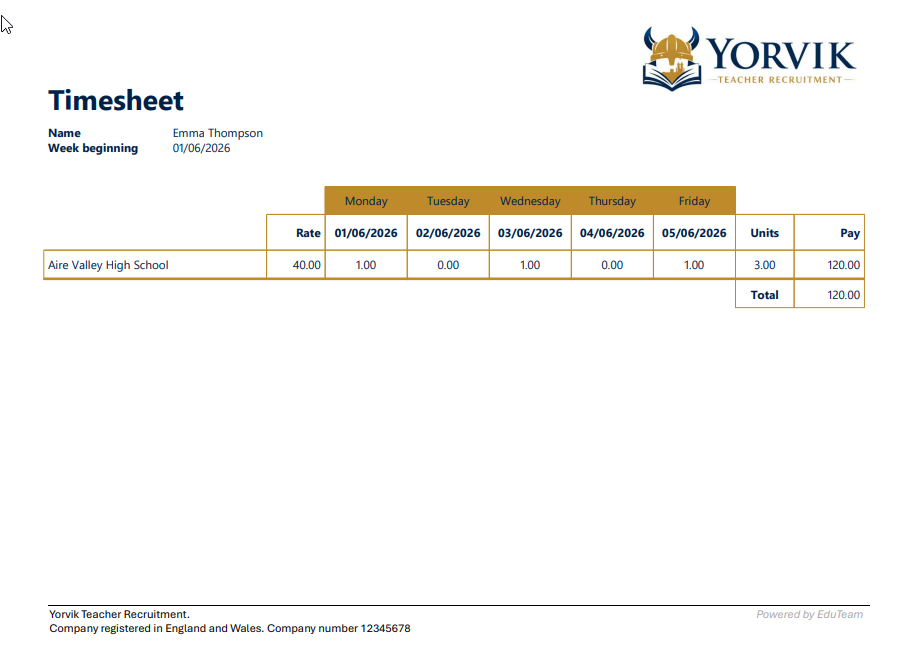
Click the Download button on candidate timesheet
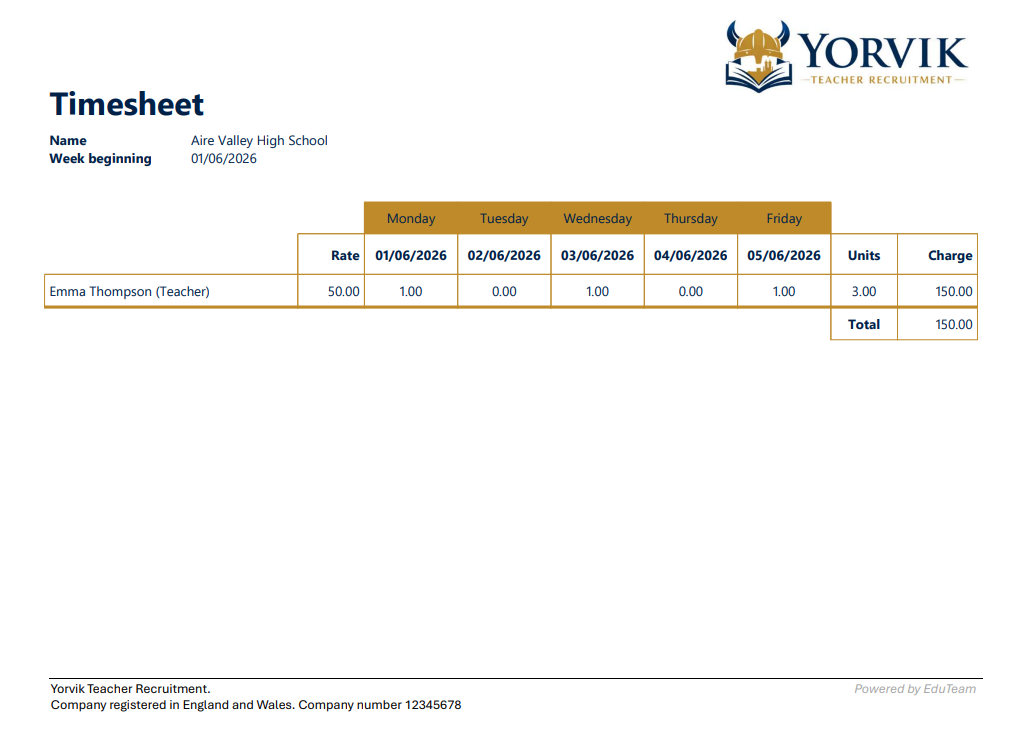
You will see a pdf rendering of the timesheet based on your configured template and colour scheme:
Click the Send button on a candidate timesheet
The candidate will recieve an email similar to the following:
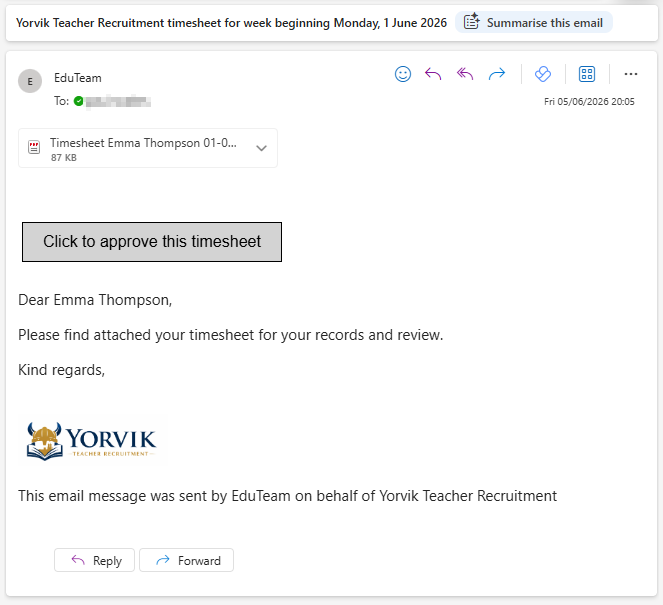
The status of the timesheet will change to Confirmed once the candidate clicks on the confirmation link.
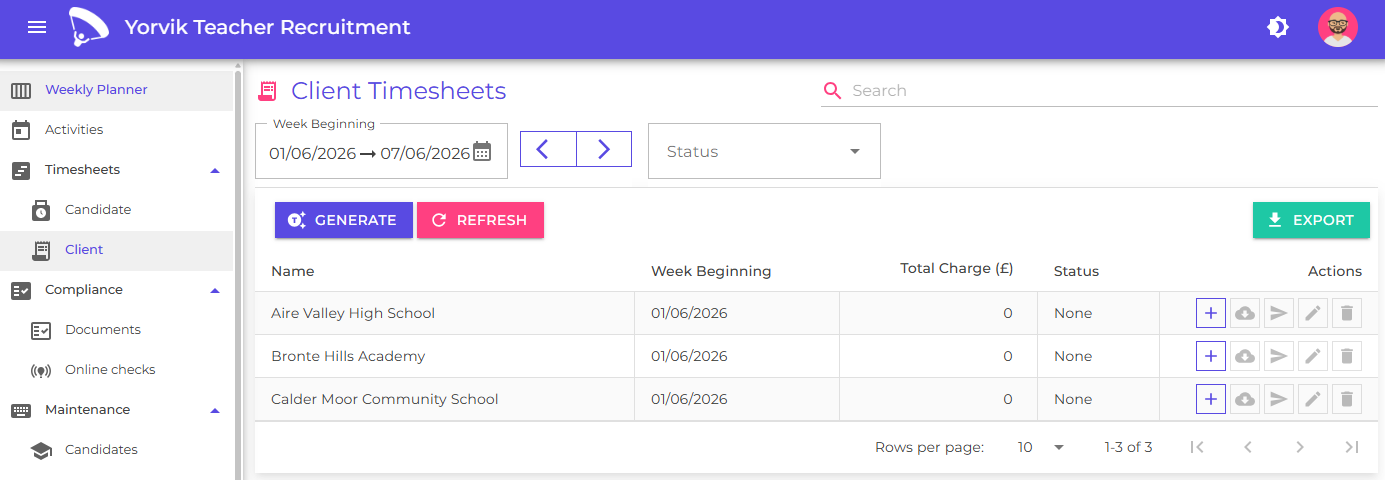
Generate client timesheet
Client timesheets following the same workflow as candidate timesheets:
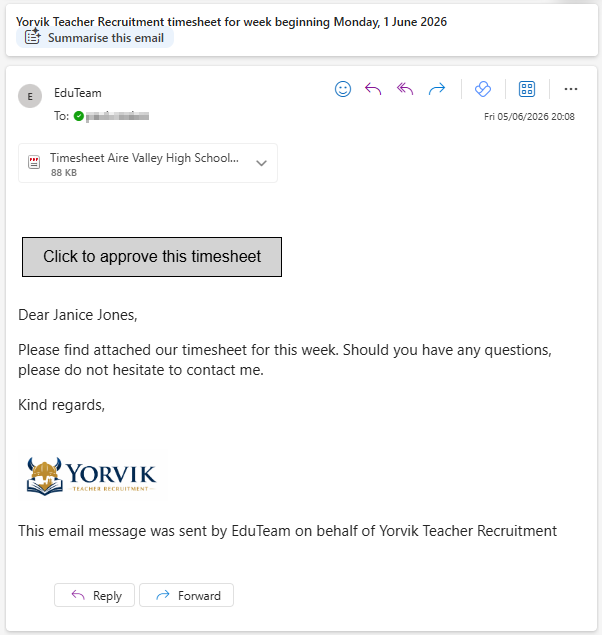
The client will recieve an email similar to the following:
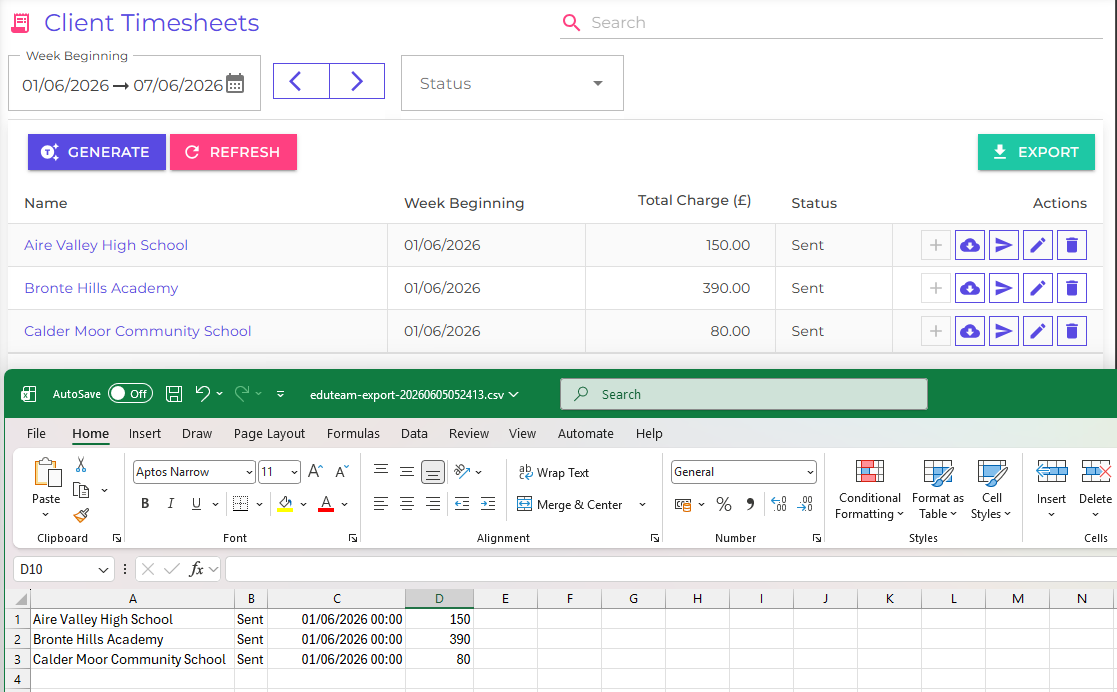
Once you have generated and confirmed your timesheets, you can export the list to a spreadsheet and use as the basis for invoicing or payroll.
To customise the content and layout of candidate and client timesheets, see:
Next
Learn how to onboard and manage candidates
Learn how to onboard and manage clients
Learn how to manage and ensure candidate compliance
Learn how to schedule activities
Learn how to generate and send booking forms
Learn how to manage contacts
Understand how to analyse and report on your consultant and agency performance