Overview
This guide explains how candidate compliance is managed in EduTeam.
Compliance check
Each candidate has a primary activity type. The activity type defines the document types required for that role, including any documents marked as mandatory.
When compliance documents are uploaded for a candidate, EduTeam compares the candidate’s documents against the requirements defined for their primary activity type to determine whether they meet the compliance requirements.
It checks:
- Whether all mandatory document types are present
- Whether the documents are approved
- Whether the documents are still in date (not expired)
If all mandatory requirements are met, the candidate is considered compliant for their primary activity type.
We recommend that you change the status of the candidate to active at this point.
View existing documents
Navigate to Compliance > Documents
This will show you a list of all existing documents.
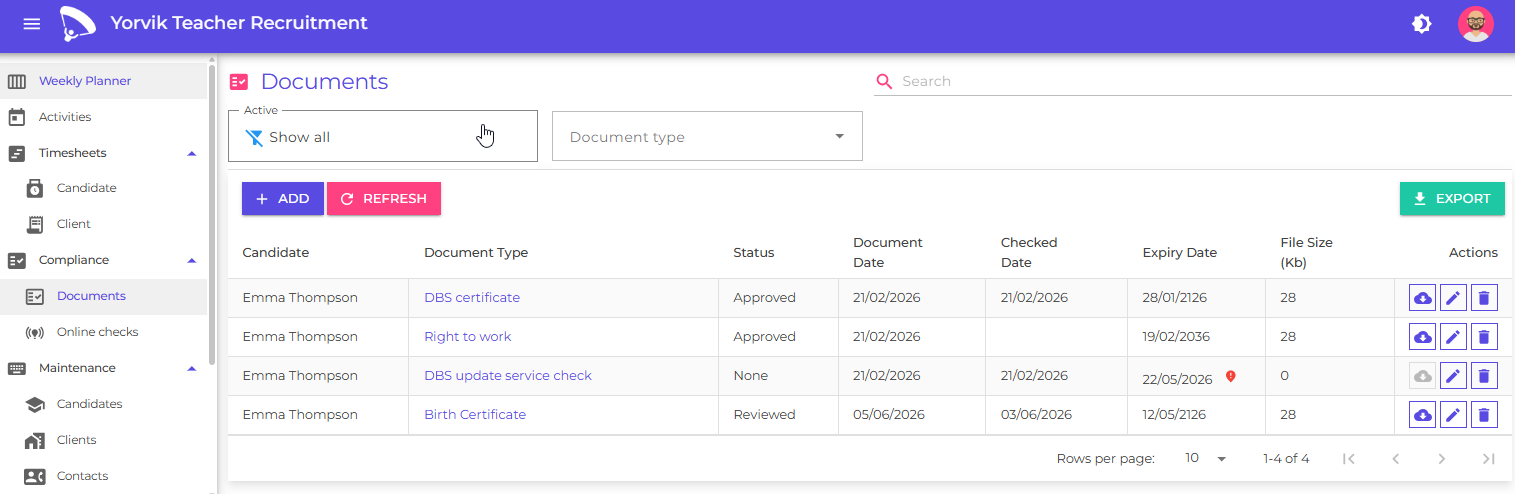
You can filter the list by:
- Document type
- Document status (for example: active, expired, or expiring soon)
These filters help you identify documents that may need attention, such as:
- Missing documents
- Expired documents
- Documents that require review or re-approval
Add a new document
Click the Add button
You will see the add/edit Document page
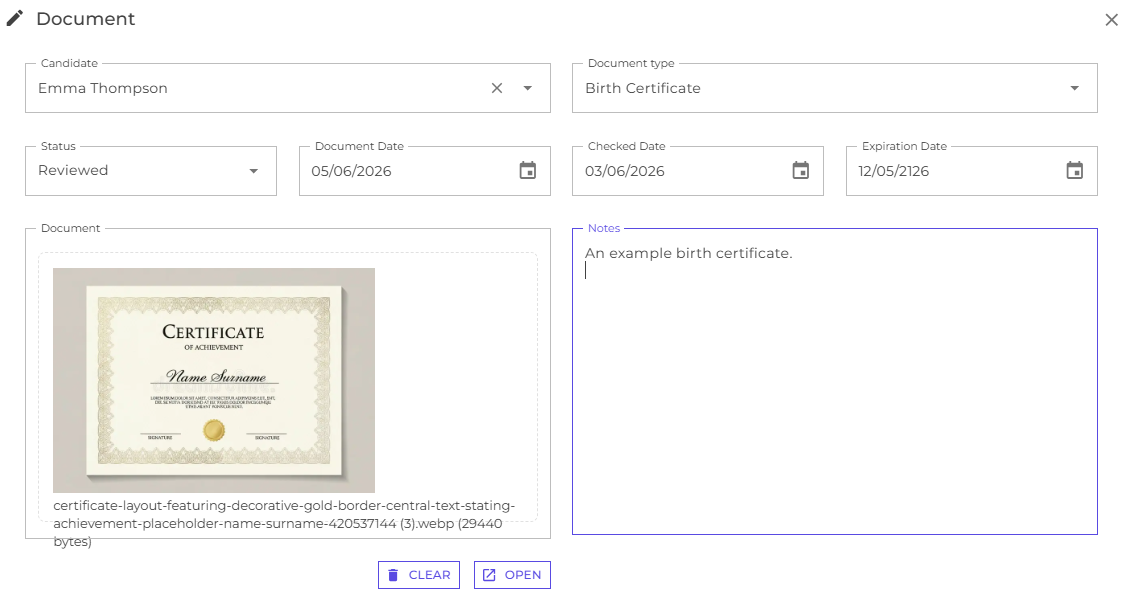
Each document has the following fields:
| Field | Description |
|---|---|
| Document type | The type of document being uploaded |
| Candidate | The candidate the document belongs to |
| Status | The current status of the document (None, Reviewed, Approved, Archived, Invalid) |
| Document date | The issue date shown on the original document |
| Checked date | The date the document was reviewed |
| Expiration date | The date the document expires (based on settings for the document type) |
| Document | The uploaded file (for example PDF, PNG, JPG) |
| Notes | Additional information about the document |
Once documents have been uploaded for a candidate, you can check their compliance status in the candidate list page, or by opening the candidate record and viewing the compliance tab.
Use the DBS Update service
Once DBS documents have been uploaded for your candidates, you can periodically use the online checks feature to automatically update the DBS update status for related candidates.
Navigate to Compliance > Online checks
This will show you a list of all existing DBS documents.
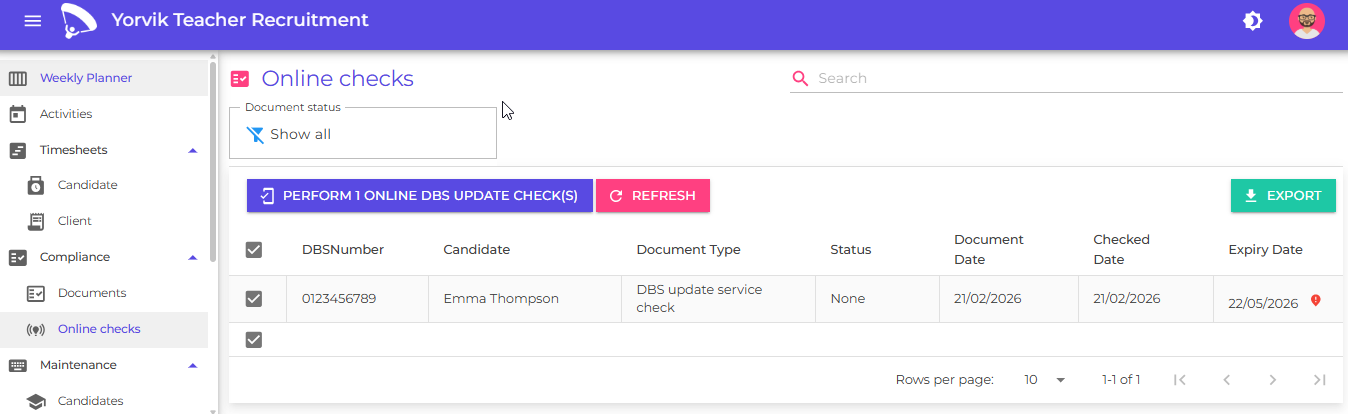
Use the filter to select the documents that you want to check.
Click the Perform online DBS update checks button
This will show the following confirmation statement:
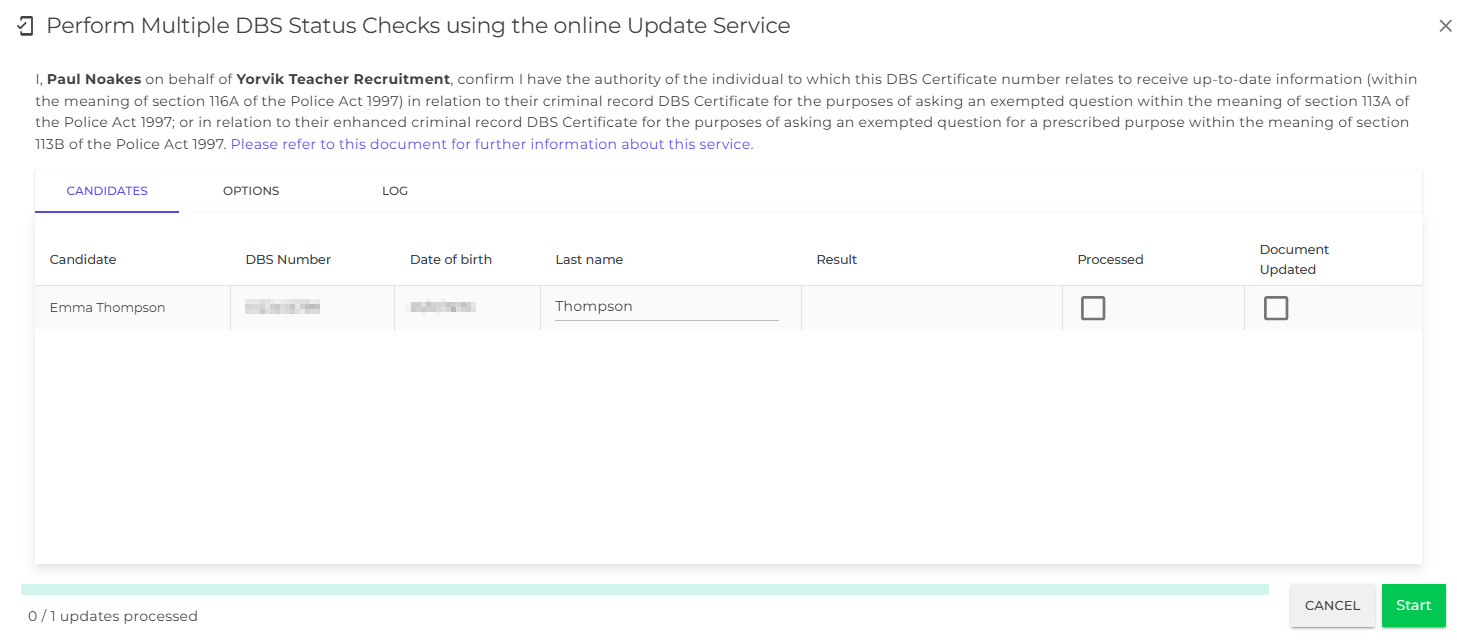
Click the start button to agree to the terms of the service
A query is sent to the DBS online update service and the results of the check are shown in the grid:

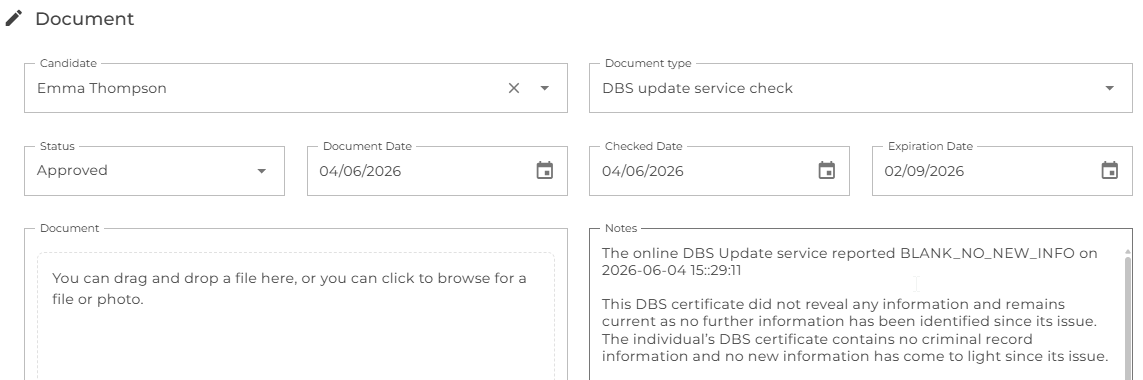
Review the document
The result from the DBS online update service is record in the document notes, and the status and dates are updated accordingly.
Next
Learn how to onboard and manage candidates
Learn how to onboard and manage clients
Learn how to schedule activities
Learn how to generate and send booking forms
Learn how to generate timesheets
Learn how to manage contacts
Understand how to analyse and report on your consultant and agency performance