Overview
This article explains how to configure timesheet settings to apply your company’s logo and brand.
Pdf template
Navigate to Settings > Company Info and click the Timesheets tab
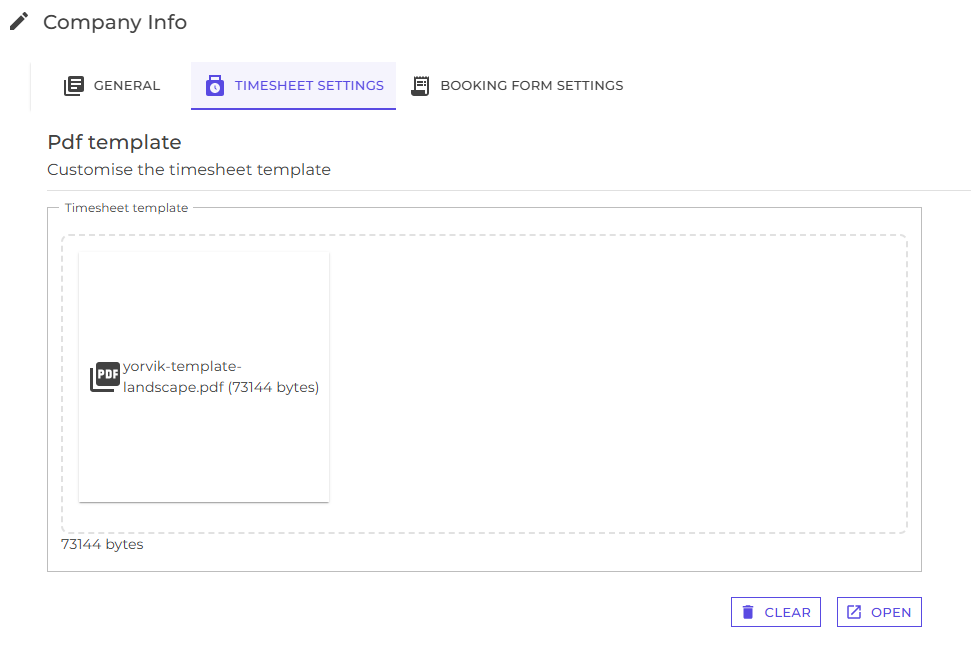
Here you can upload a PDF template to be used as branded stationery when generating timesheet documents.
For example:
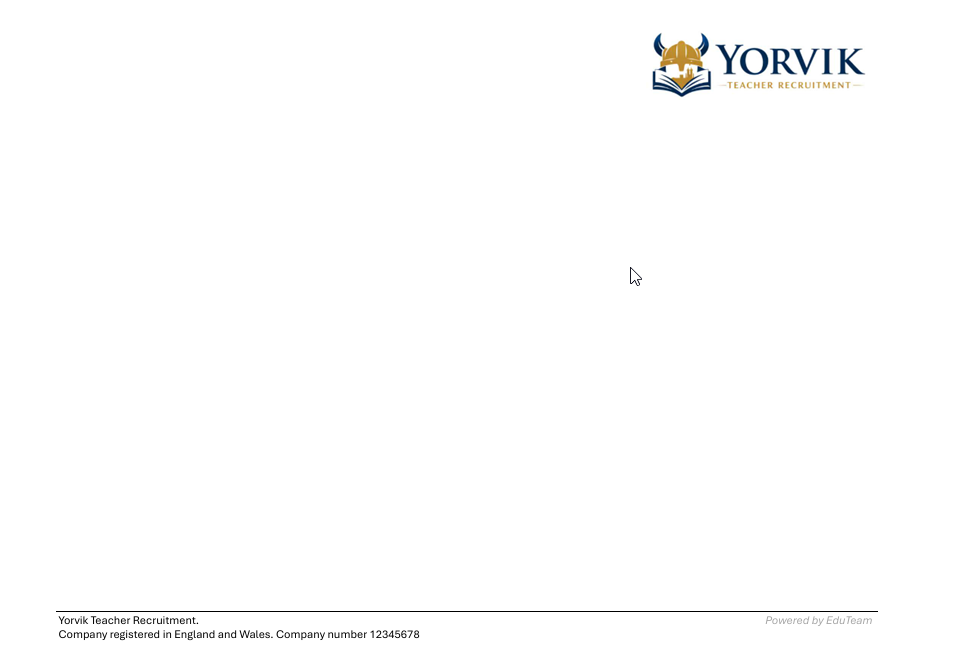
Using a branded template helps ensure all generated timesheets maintain a professional appearance consistent with your organisation’s identity.
Email templates
Continue scrolling to view these additional timesheet options
This section allows you to customise the content of timesheet notification emails sent to candidates and clients.
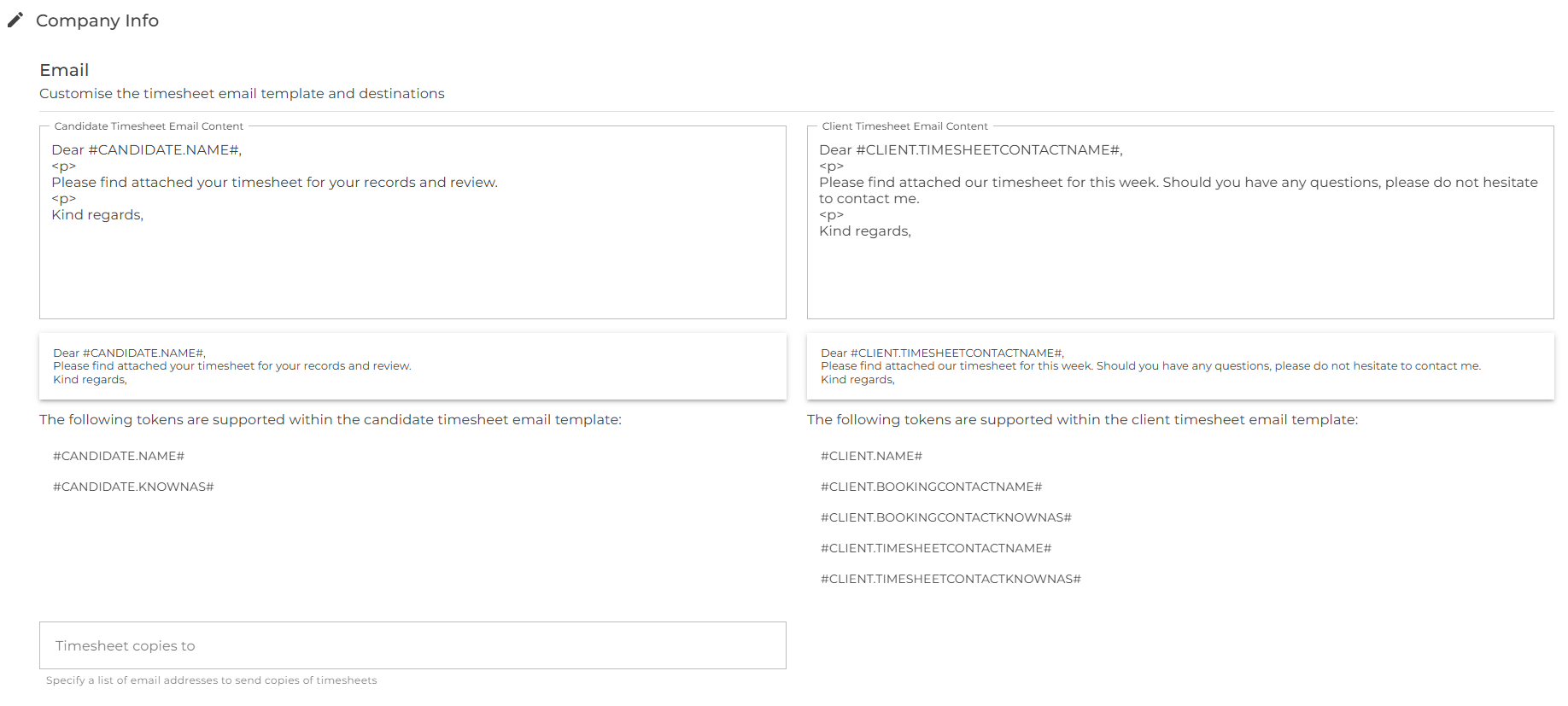
Separate email templates can be configured for candidates and clients using the available merge fields shown below.
- #CANDIDATE.NAME# (e.g. Katie Smith)
- #CANDIDATE.KNOWNAS# (e.g. Kate)
- #CLIENT.NAME# (e.g. Warmdale Sixth Form)
- #CLIENT.BOOKINGCONTACTNAME# (e.g. Robert Bishley)
- #CLIENT.BOOKINGCONTACTKNOWNAS# (e.g. Rob)
- #CLIENT.TIMESHEETCONTACTNAME# (e.g. Priti Ramdene)
- #CLIENT.TIMESHEETCONTACTKNOWNAS# (e.g. Priti)
These tokens are automatically replaced with the appropriate values when emails are generated.
You can also specify an email address that will receive copies of all timesheets
Next
Learn how to configure the core system
Learn how to configure additional areas of the system
Learn how to configure the presentation and distribution of booking forms