Overview
EduTeam uses a number of configurable reference data types to control how activities are recorded and managed. This guide explains each configuration area and when it should be used.
When configuring EduTeam for the first time, we recommend creating configuration in the following order:
- Activity Types
- Document Types
- Rate Types
The configuration areas in this guide are essential for the system to function correctly and time should be spent experimenting and understanding the options. Once you understand how these work, you can start to look at setting up:
- Shift Types
- Duration Types
- Activity Subtypes
- Specialisms
- Reason Codes
Activity Types
Activity Types define the services or work activities that clients can request and candidates can perform. Activity Types are required before activities can be created.
Navigate to Settings > Activity Types
This will show you a list of the existing activity types.
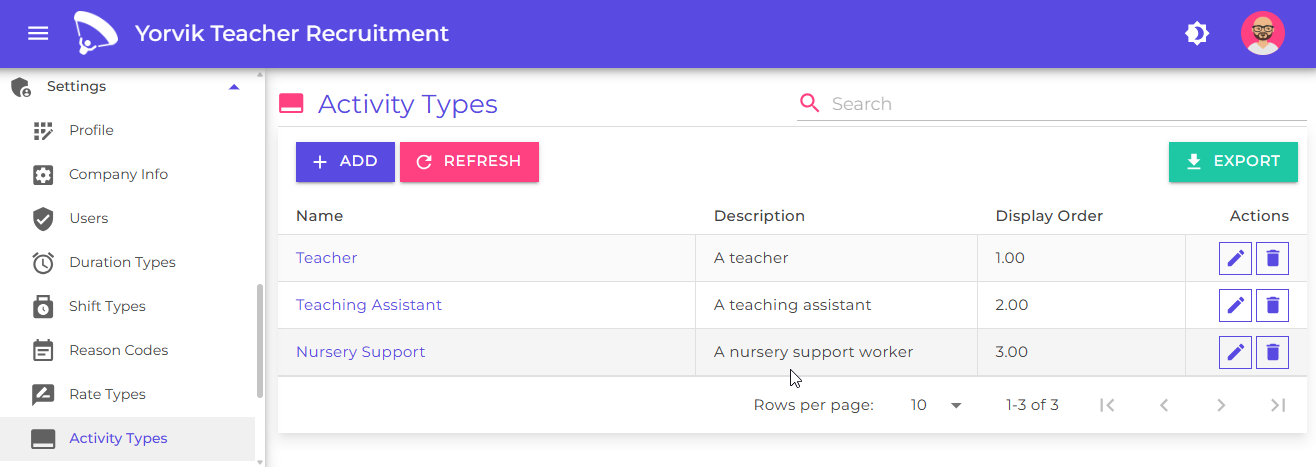
Examples might include:
- Teaching (or Teacher)
- Teaching Assistance (or Teaching Assistant)
- Office Administration (or Office Administrator)
- Exam Invigilation (or Exam Invigilator)
- Child care (or Nursery Practitioner)
Click the Add button
You will see the add/edit Activity type page
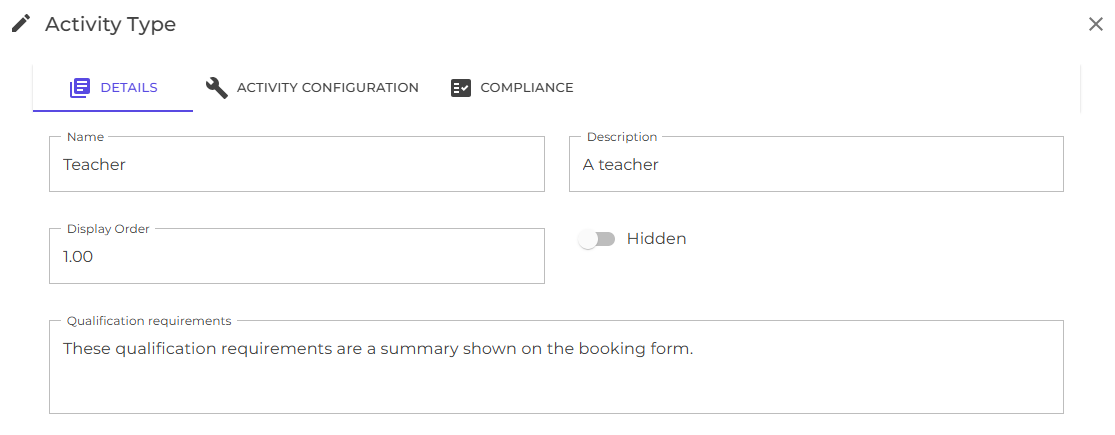
Each activity type has the following fields:
| Field | Description |
|---|---|
| A name | This is what you select when creating an activity |
| A description | Something to help describe the activity type |
| A display order | This is used when sorting items in a list |
| A hidden flag | This allows you to hide the activity type without removing it |
| Qualification requirements | This is descriptive text that can be shown in the booking form to summarise the qualification requirements for this type of activity |
Switch to the configuration tab
These options control how users enter time and shift information when creating activities.
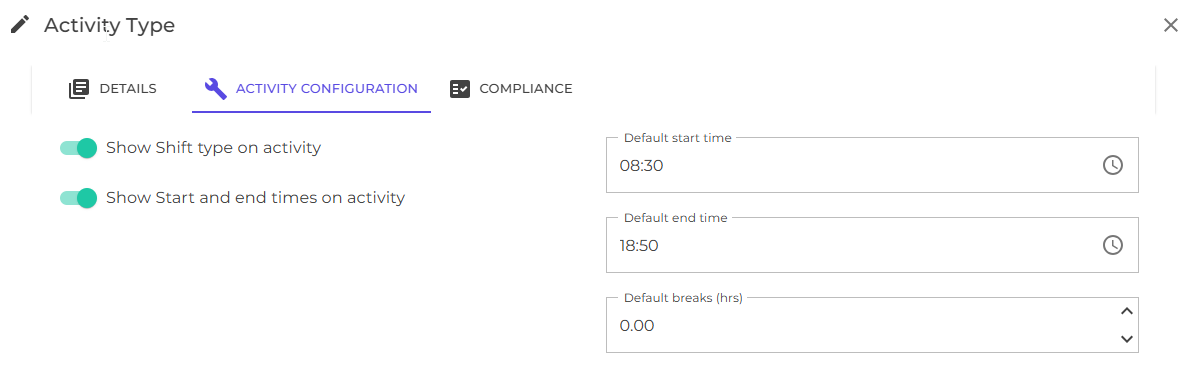
You can choose between shift types, start and end times or using both when scheduling an activity:
| Field | Description |
|---|---|
| Show shift type on activity | Whether to show or hide the shift type drop down on the activity |
| Show Start and end times on activity | Whether to show or hide the start and end times on the activity |
| Default start time | Default for start time if shown on activity |
| Default end time | Default for end time if shown on activity |
| Default breaks (hrs) | Default for breaks (in hrs) if shown on activity |
This makes it possible to record activities for shift based working patterns (e.g. candidates on a half day rate) or for candidates that should be paid hourly.
Switch to the compliance tab
You can see the compliance requirements for this type of activity, and how these should be shown in the booking form
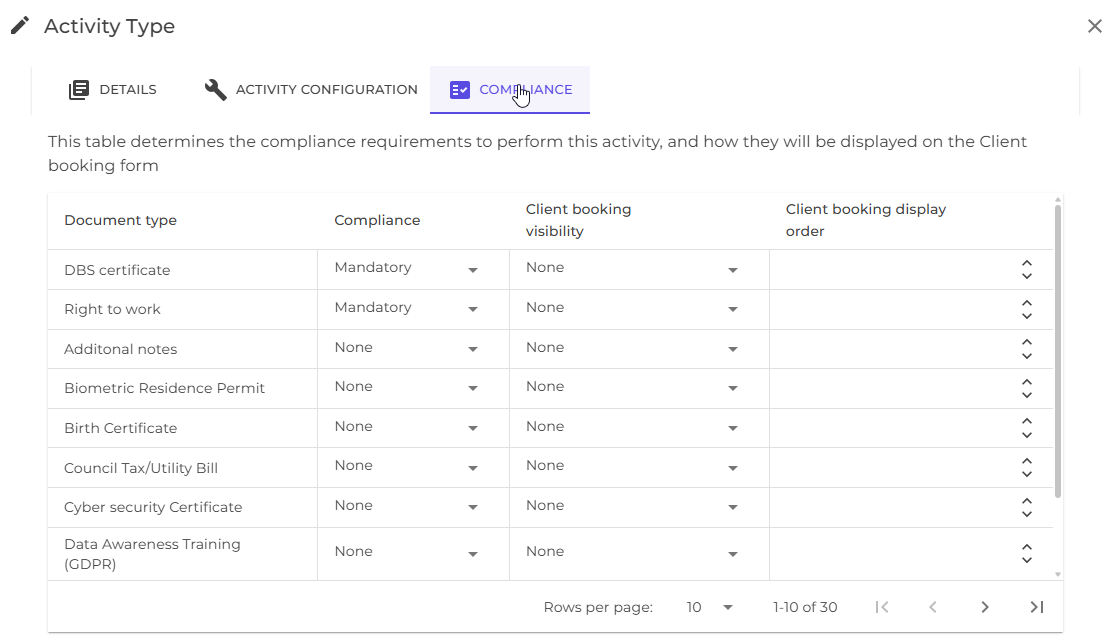
For each type of compliance document configured (see below), you can specify:
- Whether compliance is Mandatory, optional or not required.
- Whether to include this compliance requirement on the candidate booking form, and whether to show compliance as complete, not applicable or from the document or checked dates recorded on the compliance document.
- Whether to include this compliance requirement on the client booking form
A candidate is expected to have an active compliance document for each of the mandatory compliance requirements.
Document Types
Document Types define the compliance documents candidates must hold before they can undertake specific activities.
Navigate to Settings > Document Types
This will show you a list of the existing document types.
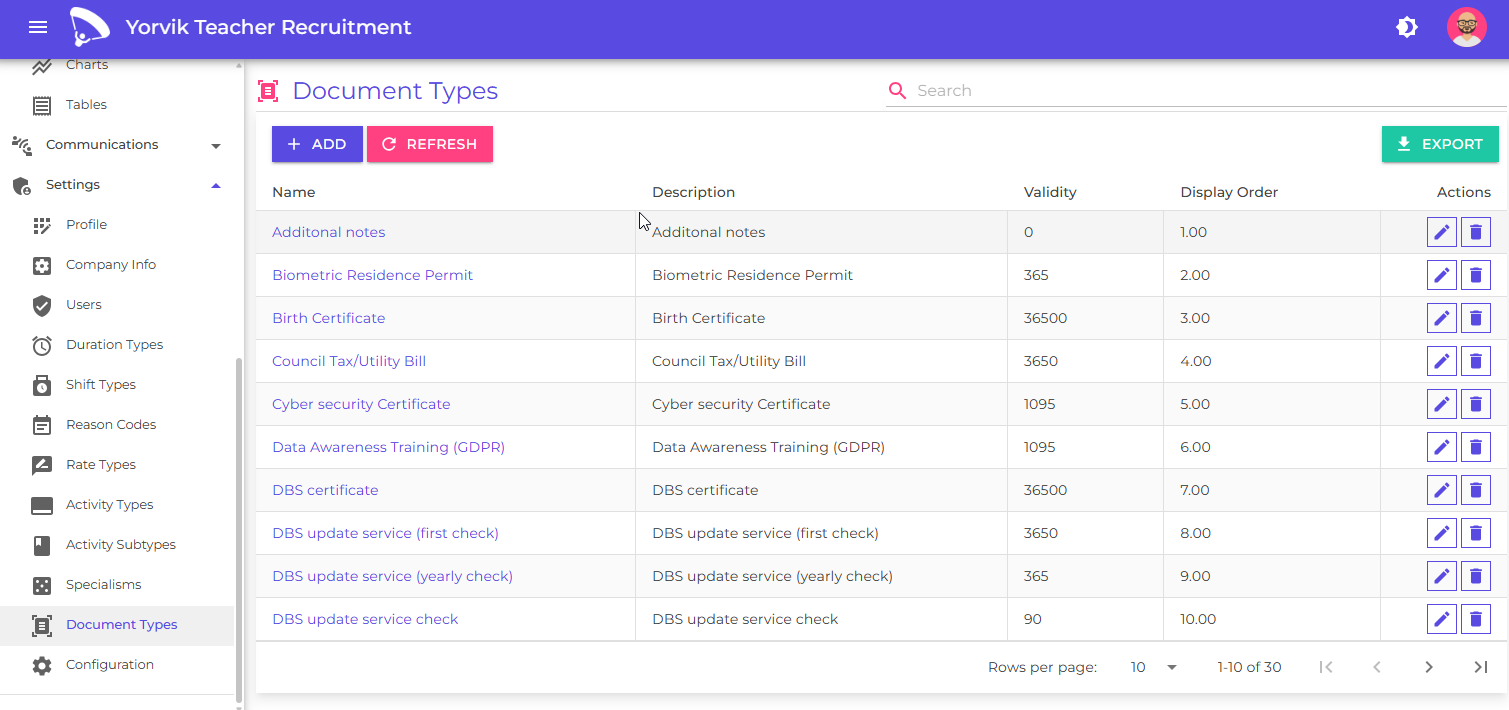
Examples might include:
- DBS Certificates
- Teaching Qualifications
- Right to Work Documentation
- Professional Registrations
- Safeguarding Certificates
Click the Add button
You will see the add/edit Document type page
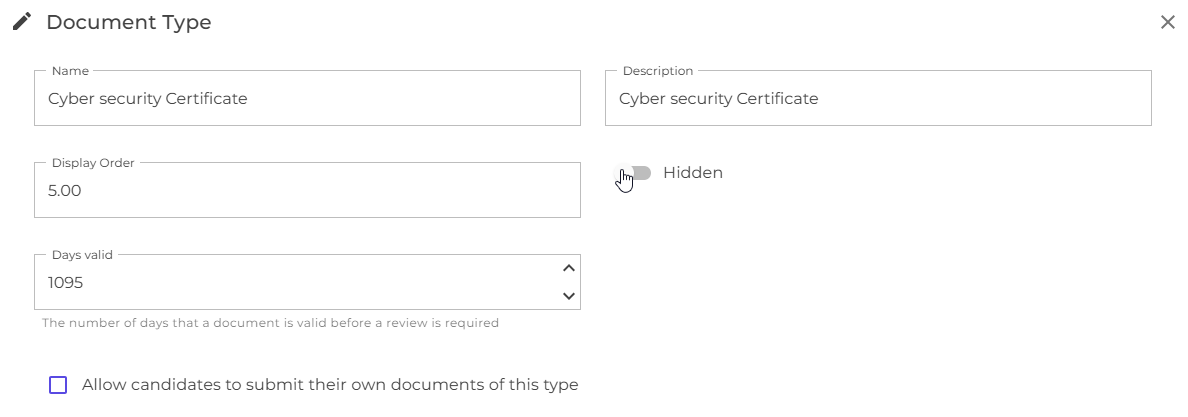
Each document type has the following fields
| Field | Description |
|---|---|
| A name | This is what you select when creating a document |
| A description | Something to help describe the document type |
| A display order | This is used when sorting items in a list |
| A hidden flag | This allows you to hide the document type without removing it |
| Days valid | This is used to calculate the expiry date of a compliance document by adding this value to the date when the document is checked and approved |
You can also specify whether candidates are allowed to upload their own documents of this type.
Rate Types
Rate Types determine how payable and chargeable amounts are calculated for different activities.
Navigate to Settings > Rate Types
This will show you a list of the existing rate types.
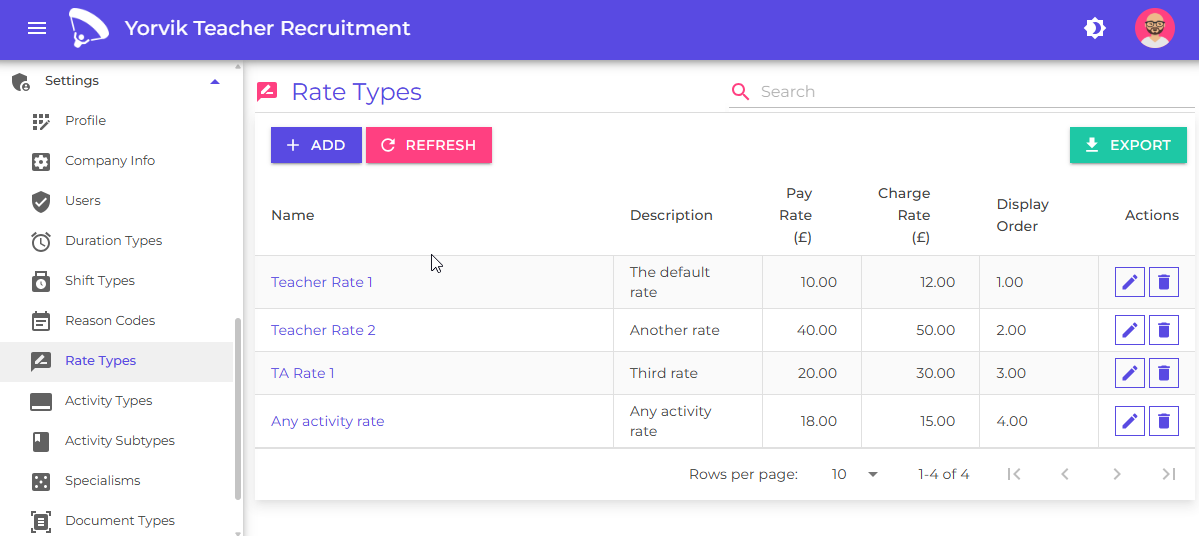
Examples might include:
- Point 1 on Main teacher pay scale
- Point 2 on Main teacher pay scale
- Point 3 on Main Teacher pay scale
- Teaching Assistant hourly rate
- Nursery Practitioner hourly rate
- Rates negotiated with specific clients or academies
EduTeam calculates total payable and chargeable amounts by multiplying the rate by the multiplier.
The multiplier is defaulted from the default multiplier defined on the rate, and can also be entered by the user when creating an activity.
It is also possible to specify that the multiplier should be calculated from the number of hours between the start and end times recorded on the activity (less any breaks). If this is enabled, there is a further configuration setting to specify how many hours are represented by the rate.
For example:
| Scenario | Pay Rate | Charge Rate | Multiplier | How Multiplier is Calculated | Candidate Pay | Client Charge |
|---|---|---|---|---|---|---|
| Full day teacher booking | £140.00 | £190.00 | 1.0 | Fixed multiplier | £140.00 | £190.00 |
| Half day teacher booking | £70.00 | £95.00 | 1.0 | Fixed multiplier | £70.00 | £95.00 |
| Teaching Assistant (6 hours) | £14.00 | £21.00 | 6.0 | Calculated from hours worked | £84.00 | £126.00 |
| Teaching Assistant (08:30–16:00, 30 min break) | £14.00 | £21.00 | 7.0 | Calculated from start/end times less breaks | £98.00 | £147.00 |
| Nursery Practitioner (8 hours) | £13.50 | £20.00 | 8.0 | Calculated from hours worked | £108.00 | £160.00 |
| Evening Exam Invigilator (3.5 hours) | £12.00 | £18.00 | 3.5 | Calculated from hours worked | £42.00 | £63.00 |
| Teacher paid at 1.5 day rate | £140.00 | £190.00 | 1.5 | Manually adjusted multiplier | £210.00 | £285.00 |
| Two-day booking charged as a single activity | £140.00 | £190.00 | 2.0 | Manually adjusted multiplier | £280.00 | £380.00 |
Click the Add button
You will see the add/edit Rate type page
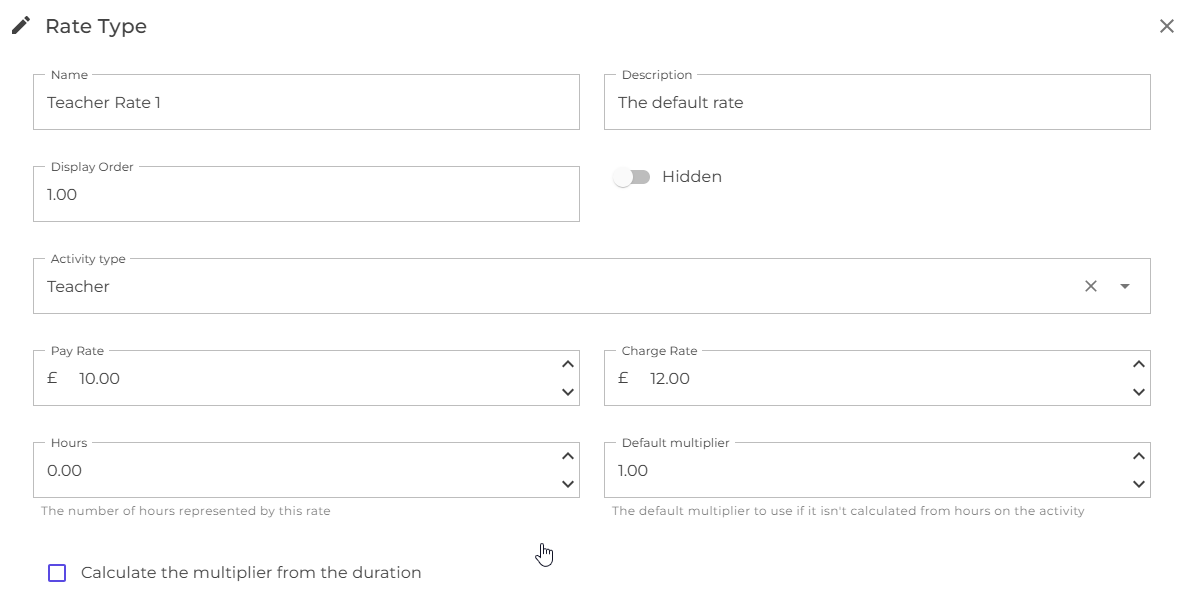
Each document type has the following fields :
| Field | Description |
|---|---|
| A name | This is what you select when creating an activity |
| A description | Something to help describe the rate type |
| A display order | This is used when sorting items in a list |
| A hidden flag | This allows you to hide the rate type without removing it |
| The type of activity that this rate applies to | This is optional and helps with filtering dropdown choices |
| The pay rate | This is used to calculate the total payable on the candidate timesheet |
| The charge rate | This is used to calculate the total chargeable client timesheet |
| Default multiplier | This value is used as the default multiplier when creating a new activity |
| Calculate multiplier | If set, the multiplier is calculated from the activity start and end times |
| Hours | The number of hours represented by this rate when calculating the multiplier |
Next
Learn how to configure the presentation and distribution of timesheets
Learn how to configure additional areas of the system
Learn how to configure the presentation and distribution of booking forms