Overview
These configuration areas are optional and are mostly used for reporting purposes.
Shift Types
Shift Types define when activities are required and can either have specific start and end times, or can be general shift patterns.
Navigate to Settings > Shift Types
This will show you a list of the existing shift types.
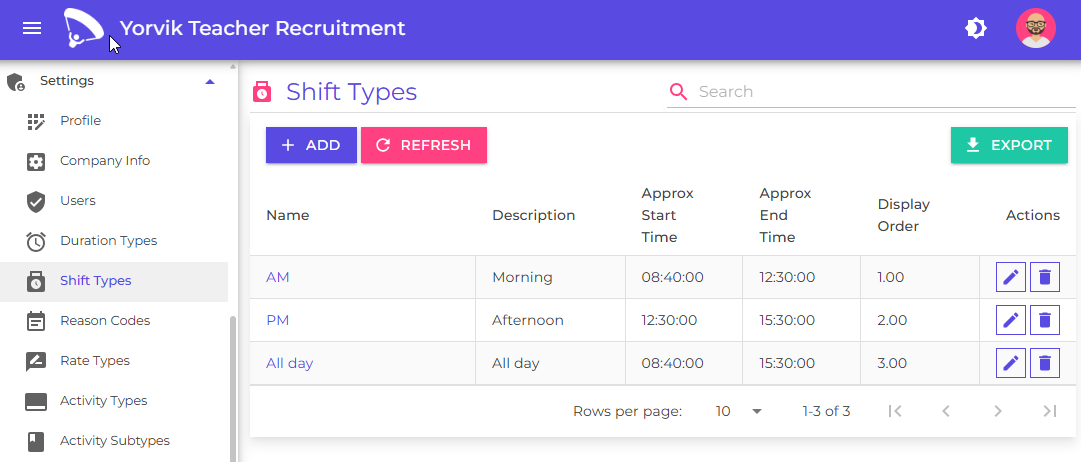
Examples might include:
- Morning
- Afternoon
- All day
Click the Add button
You will see the add/edit Shift type page
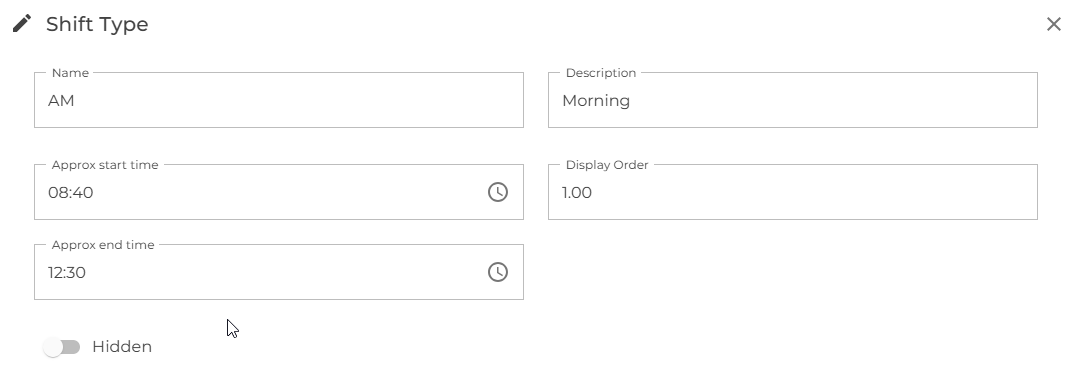
Each document type has the following fields :
| Field | Description |
|---|---|
| A name | This is what you select when creating an activity |
| A description | Something to help describe the shift type |
| A display order | This is used when sorting items in a list |
| A hidden flag | This allows you to hide the shift type without removing it |
| Approx start time | This is used to detect scheduling conflicts between shift based activities |
| Approx end time | This is used to detect scheduling conflicts between shift based activities |
Duration Types
Duration Types define the expected length of an engagement between the client and the candidate
Navigate to Settings > Duration Types
This will show you a list of the existing duration types.
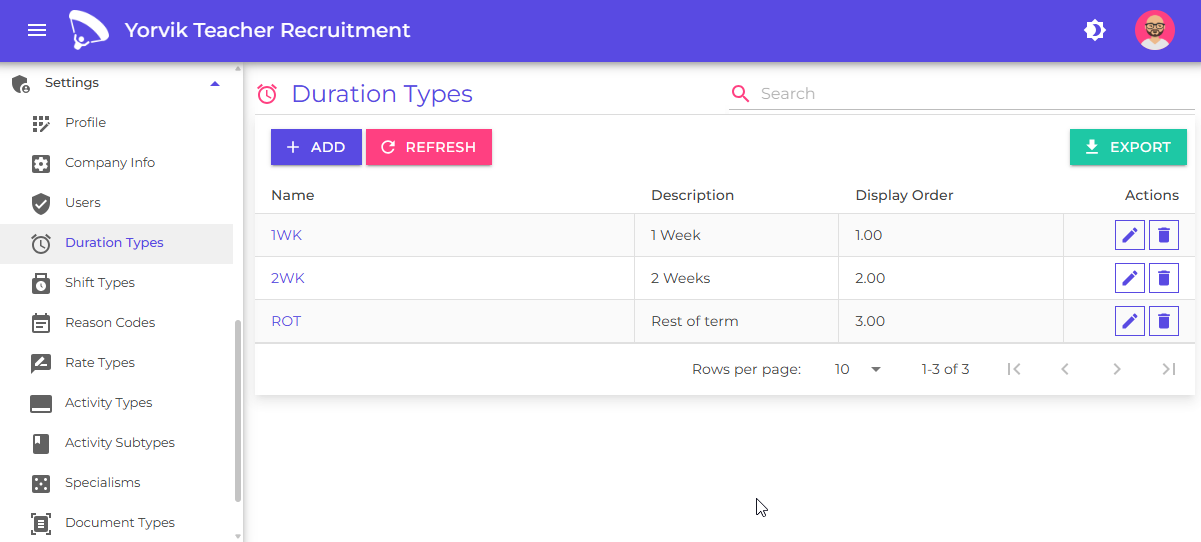
Examples might include:
- Half Day
- Full Day
- Half Term
- Full Term
- Full Year
Click the Add button
You will see the add/edit Duration type page
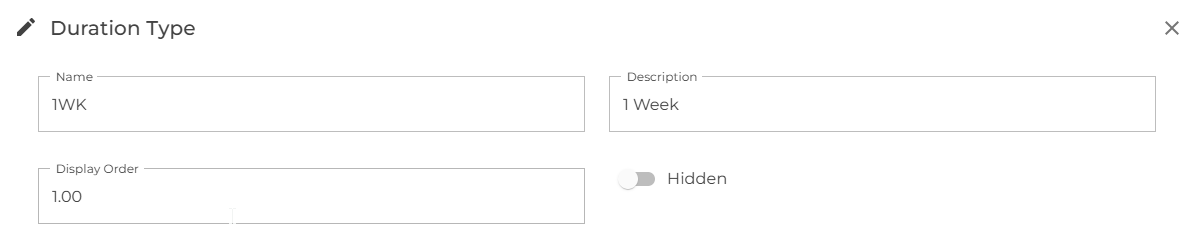
Each duration type has the following fields :
| Field | Description |
|---|---|
| A name | This is what you select when creating an activity |
| A description | Something to help describe the duration type |
| A display order | This is used when sorting items in a list |
| A hidden flag | This allows you to hide the duration type without removing it |
Activity Subtypes
Activity Subtypes allow you to create more granular classifications within an Activity Type for reporting purposes.
Navigate to Settings > Activity Subtypes
This will show you a list of the existing Activity subtypes.
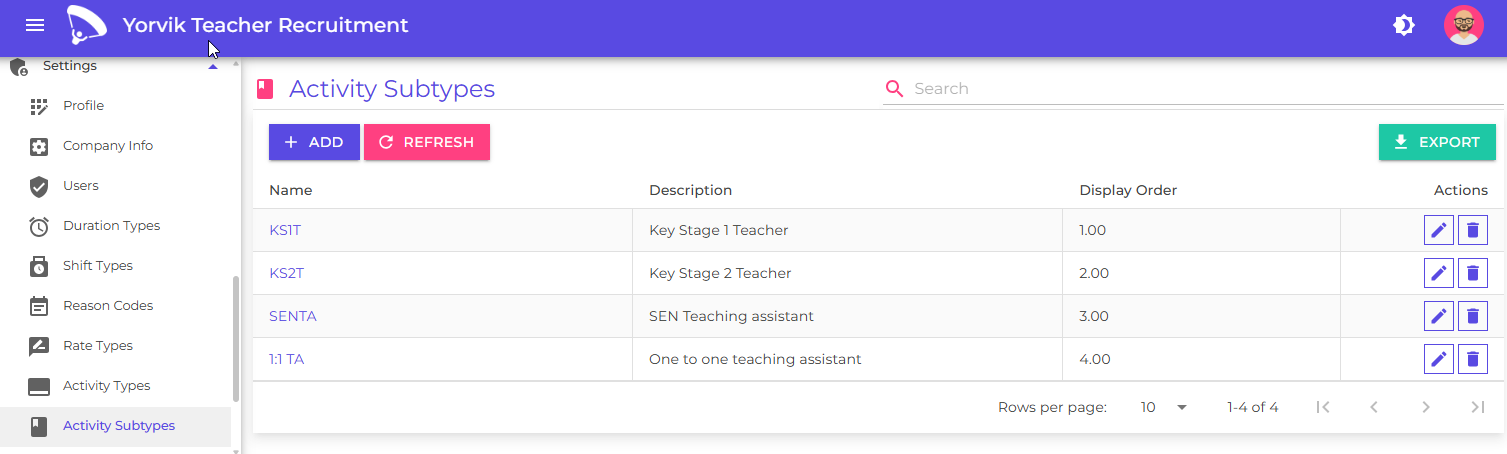
Examples might include:
- Year 1 Teacher
- Year 2 Teacher
- Year 3 Teacher
- Lower KS2
- Upper KS2
- SEN teaching Assistant
Click the Add button
You will see the add/edit Activity Subtype page
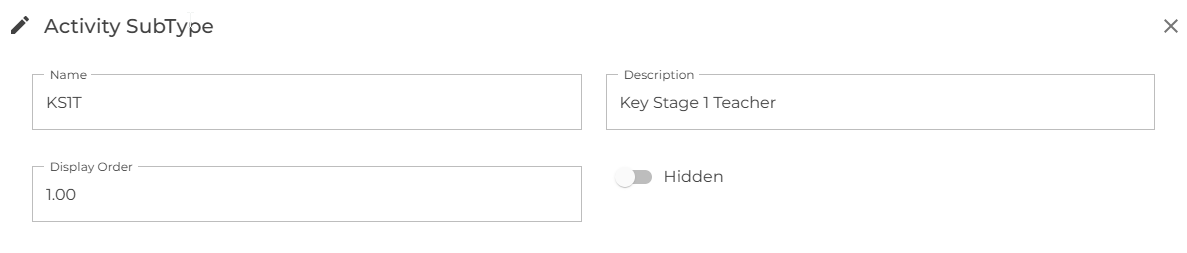
Each activity subtype has the following fields :
| Field | Description |
|---|---|
| A name | This is what you select when creating an activity |
| A description | Something to help describe the activity subtype |
| A display order | This is used when sorting items in a list |
| A hidden flag | This allows you to hide the activity subtype without removing it |
Specialisms
Specialisms allow candidates to be categorised according to their expertise and experience and improve candidate searching and matching.
Navigate to Settings > Specialisms
This will show you a list of the existing Specialisms
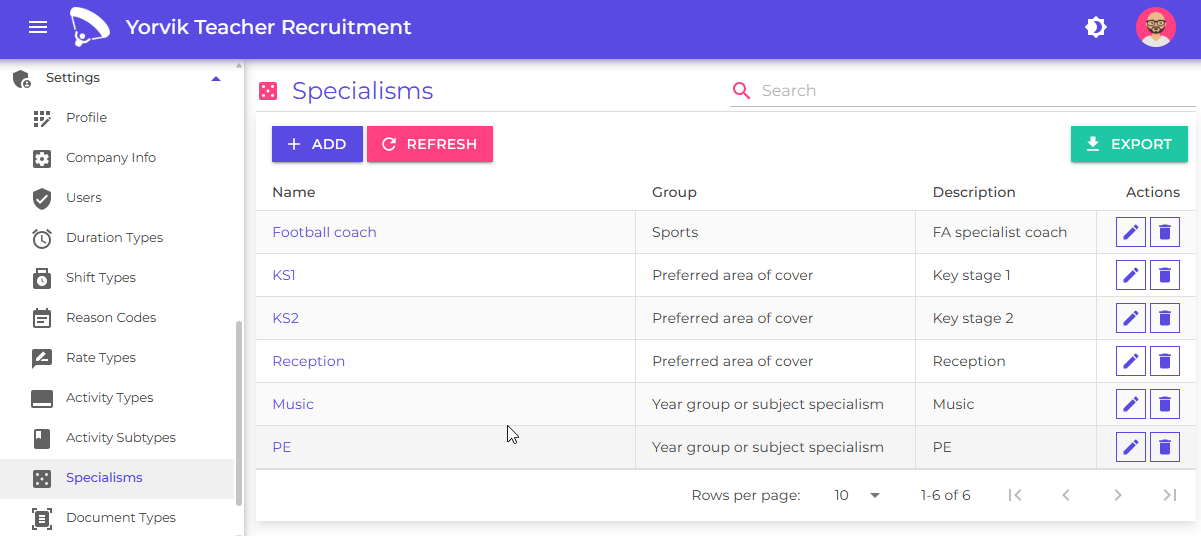
You can define groups of specialisms, for example:
- Preferred area of cover
- Year group or subject specialism
Examples within a subject specialism might include:
- Teaching Languages
- Teaching PE
- Teaching music
Click the Add button
You will see the add/edit Specialism page
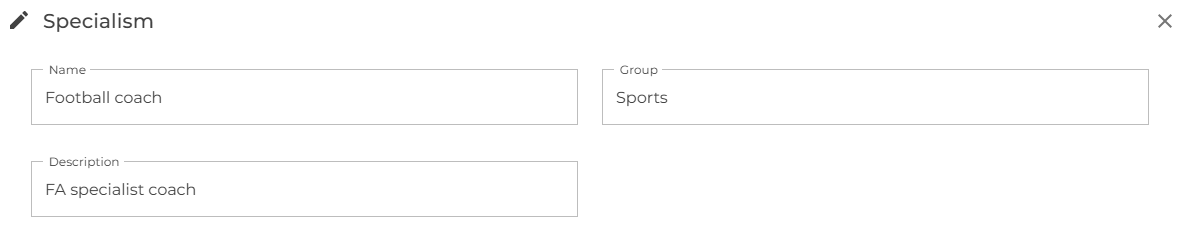
Each specialism has the following fields :
| Field | Description |
|---|---|
| A name | This is what you select when creating an activity |
| A description | Something to help describe the speciality |
| Group | This is used when grouping items in a list |
Reason Codes
Reason Codes capture additional information about specific events and improve reporting quality and operational analysis.
Navigate to Settings > Reason codes
This will show you a list of the existing Reason codes
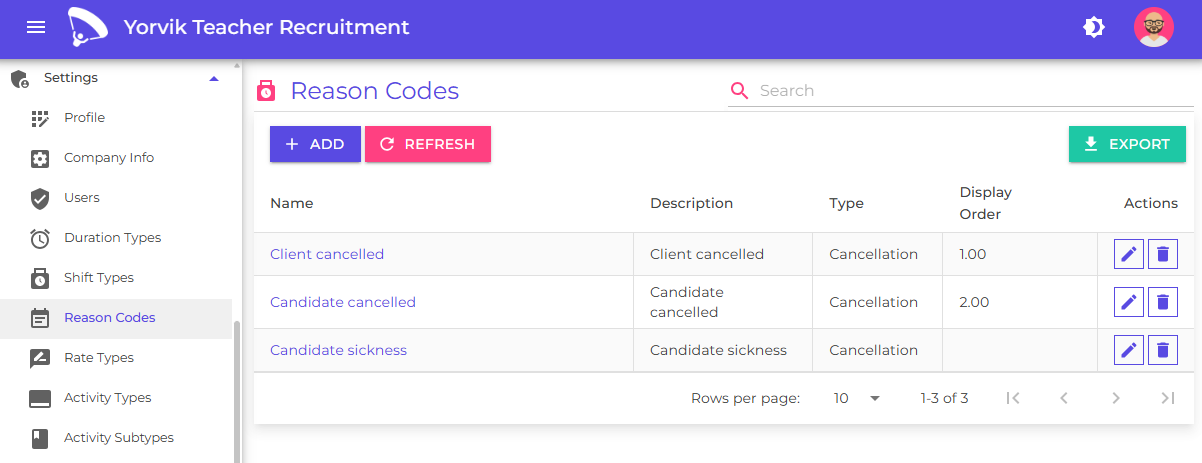
The system currently only supports the activity cancellation event - further events may be supported in the future.
Examples include:
- Candidate Withdrawal
- Client Cancellation
- Compliance Failure
Click the Add button
You will see the add/edit Reason code page
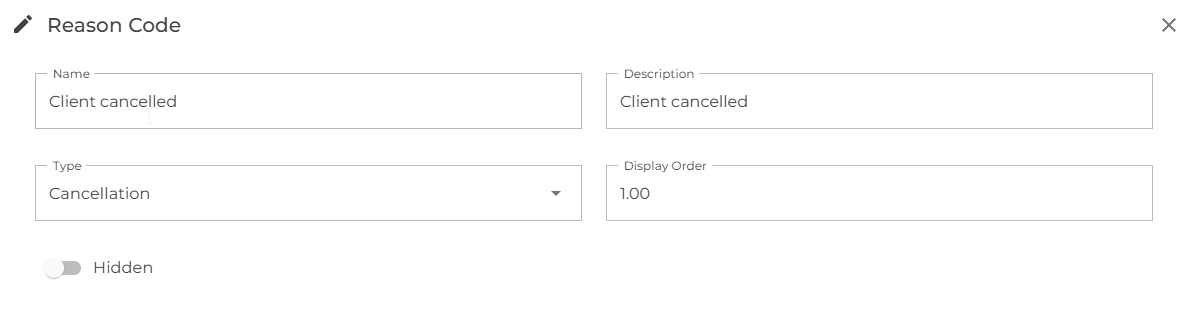
Each Reason code has the following fields :
| Field | Description |
|---|---|
| A name | This is what you select when cancelling an activity |
| A description | Something to help describe the reason code |
| A display order | This is used when sorting items in a list |
| A type | The system only supports cancellation reason codes at the moment |
Next
Learn how to configure the core system
Learn how to configure the presentation and distribution of timesheets
Learn how to configure the presentation and distribution of booking forms