Overview
This guide explains how EduTeam works from a high level and how to log into EduTeam as a new user.
Understanding a few core concepts will help you understand how EduTeam works and how the different parts of the system relate to one another.
Candidates
A candidate is a person who can be booked to perform work. The candidate record stores the information required to manage that person throughout their recruitment journey, including contact details, compliance documents, bookings, and timesheets.
Activity types
Activity types define the different types of work that can be performed. They are used throughout the system and form the foundation of many business processes, including compliance and bookings.
Every candidate must have a primary activity type.
Document types
Document types define the different types of compliance documents that can be held against a candidate.
Examples include identity documents, qualifications, references, and background checks.
Document types can be configured as mandatory or optional.
Compliance requirements
Compliance requirements are created by linking document types to activity types. This relationship defines which documents are required for candidates performing a particular type of work.
For example:
- Activity Type → Teaching Assistant
- Required Documents → DBS Certificate, Right to Work, References
When a candidate is assigned a primary activity type, EduTeam uses these requirements to determine which documents are needed for compliance.
This relationship is one of the most important concepts in EduTeam because it drives the compliance process.
Compliance
Compliance is the process of checking whether a candidate has the required documents for their primary activity type.
EduTeam compares the candidate’s documents against the compliance requirements defined for their activity type and identifies any missing or expired documents.
Clients
Clients are the organisations that request staff.
Bookings, timesheets, and financial information are linked to clients for operational management and reporting.
Activities and bookings
An activity represents a period of work that has been arranged for a candidate.
Activities link together the candidate, client, activity type, rates, and working times.
Rate types
Rate types define how pay and charge values are calculated for an activity.
They help ensure that activities are priced consistently and reduce the need for manual calculations.
Booking forms
Booking forms are PDF documents generated from an activity.
They can be sent to candidates and clients to confirm the details of an assignment.
Timesheets
Timesheets record the hours worked for an activity.
They provide a record of the work completed and can be submitted for approval.
Approval process
Timesheets can be approved using secure approval links.
The approval process provides an audit trail showing when and by whom a timesheet was approved.
Reporting
Reporting provides visibility into operational and financial performance across candidates, clients, bookings, and timesheets.
How it all fits together
The relationship between activity types and compliance requirements drives much of the system:
- Activity types define the type of work a candidate performs.
- Compliance requirements link activity types to the document types that are required.
- Candidates are assigned a primary activity type.
- EduTeam compares the candidate’s documents against the requirements for that activity type.
- Once compliant, candidates can be booked for work.
- Activities generate booking forms and timesheets.
- Approved timesheets provide an auditable record of work completed.
- Reporting brings together information from across the system.
See it in action!
Open EduTeam
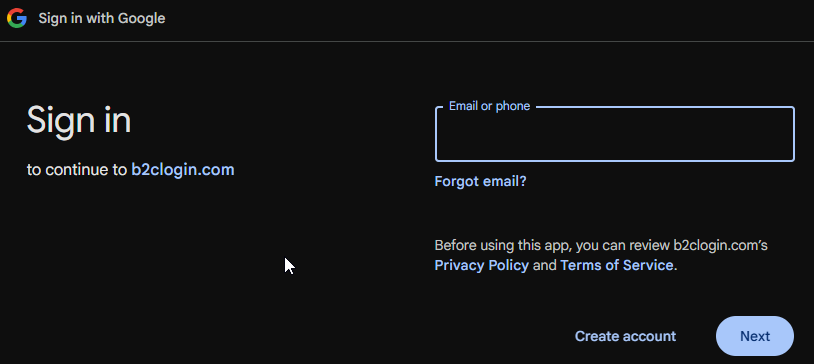
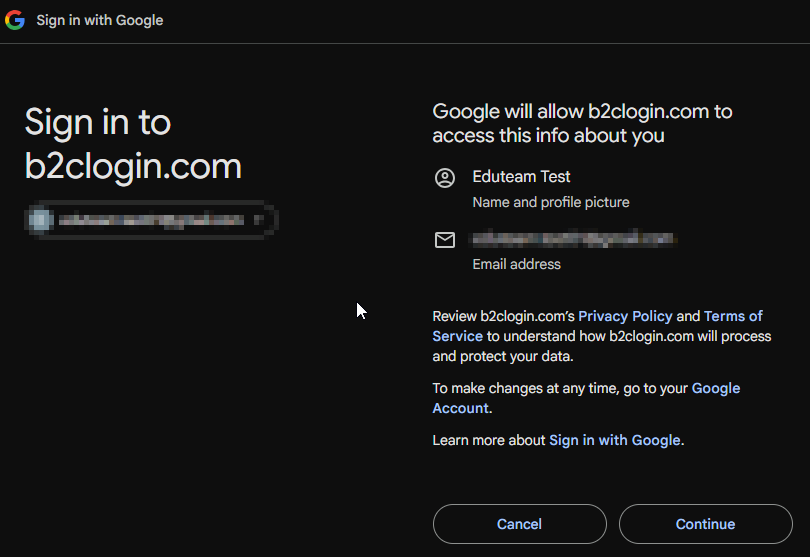
Sign in to Google (b2clogin.com)
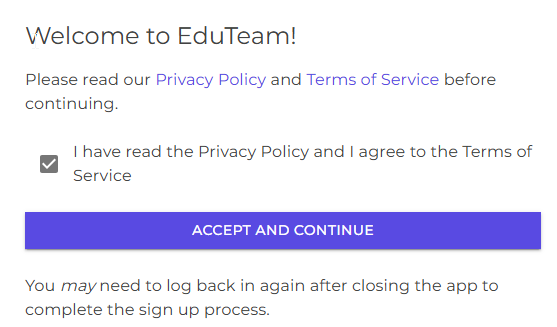
Accept terms and conditions
Next
Configure your personal and company profiles
Learn how to add new users